Introduction
Want to enable dark mode on any Android device, even on apps that don’t support it natively? In 2025, with over 3 billion Android users worldwide (per Statista), dark mode on any Android is more than a trend—it saves battery on OLED screens by up to 30% and reduces eye strain during night use. Whether you’re using Samsung, OnePlus, or a budget phone in India, this guide from Tutorils shows you 5 proven methods to force dark mode on any Android app. No root required! Let’s turn your screen dark and stylish.

Why Enable Dark Mode on Any Android App?
Dark mode isn’t just aesthetic. On AMOLED displays (common in phones above ₹15,000), black pixels turn off completely, saving power. Studies show dark mode reduces blue light exposure by 60%, helping you sleep better. For Indian users scrolling Instagram or WhatsApp late at night, forcing dark mode on any Android app protects your eyes and extends battery life—perfect for long commutes or study sessions.
1. Enable System-Wide Dark Mode on Android
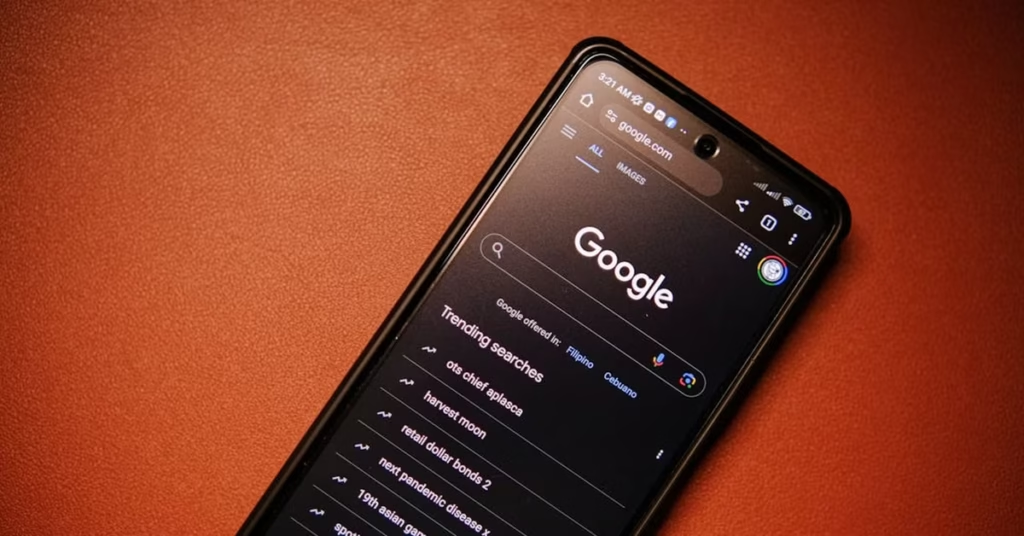
Start with Android’s built-in dark theme to cover most apps.
Step-by-Step Process:
- Open Settings > Display.
- Tap Dark theme or Dark mode (name varies by brand).
- Toggle it ON—your system UI and supported apps turn dark instantly.
- (Optional) Set Schedule: Sunset to sunrise or custom hours.
- Restart apps to apply changes.
Real-World Example:
Priya in Mumbai enabled dark mode on her OnePlus 12—WhatsApp, Gmail, and YouTube turned dark automatically.
Pro Tip: On Samsung, go to Settings > Display > Dark mode settings for extra customization.
Why It Works: System-wide dark mode is the easiest way to enable dark mode on any Android for natively supported apps.
2. Force Dark Mode Using Developer Options (No Root)
Force dark mode on any Android app—even those without native support—using hidden settings.

Step-by-Step Process:
- Go to Settings > About phone.
- Tap Build number 7 times to unlock Developer options.
- Return to Settings > System > Developer options.
- Scroll to Hardware accelerated rendering.
- Enable Override force-dark (or Force Dark Mode).
Real-World Example:
Rahul forced dark mode on an old banking app using this trick—text stayed readable, background turned black.
Pro Tip: Works best on Android 10+; some apps may have inverted colors—disable if needed.
Why It Works: This system-level hack applies dark mode on any Android app universally.
3. Use Third-Party Apps for Stubborn Apps
When native or force-dark fails, use apps to manually enable dark mode on any Android.

Step-by-Step Process:
- Download Dark Mode or DarQ from Play Store/F-Droid (free).
- Grant Accessibility and Display over other apps permissions.
- Open the app and toggle dark mode for specific apps (e.g., older versions of Facebook Lite).
- Set per-app schedules (e.g., dark mode only after 7 PM).
- Lock the setting to prevent resets.
Real-World Example:
Sonia used DarQ to force dark mode on her legacy education app—now readable at night.
Pro Tip: DarQ requires ADB setup on PC for full control (one-time 5-minute process).
Why It Works: Third-party tools give granular control over dark mode on any Android app.
4. Update Apps and System for Native Dark Mode
Many apps now support dark mode—keep everything updated.

Step-by-Step Process:
- Open Google Play Store > Profile > Manage apps & device > Updates.
- Update all apps—Instagram, WhatsApp, and Chrome roll out dark mode with updates.
- Check for system update: Settings > System > System update.
- Android 14+ improves dark mode rendering across apps.
- Restart your phone after updates.
Real-World Example:
After updating, Vikram’s Instagram Reels finally supported true black dark mode.
Pro Tip: Enable auto-update over Wi-Fi to stay current without effort.
Why It Works: Updates bring official dark mode on any Android app that supports it.
5. Customize with Launchers and Themes (Optional)
For full control, use custom launchers to theme dark mode on any Android.

Step-by-Step Process:
- Install Nova Launcher or Lawnchair (free on Play Store).
- Set it as default home screen.
- Long-press home screen > Nova Settings > Night Mode.
- Enable Dark theme for app drawer, folders, and widgets.
- Apply Substratum themes (Android 10+, no root) for system-wide dark UI.
Real-World Example:
Lisa themed her budget Redmi phone with a pitch-black launcher—looks premium!
Pro Tip: Use Dark Material icon packs from Play Store for cohesive look.
Why It Works: Launchers extend dark mode on any Android beyond apps to the entire UI.
Dark Mode Trends on Android in 2025

Android 15 introduces Adaptive Dark Mode—AI detects app colors and generates dark versions automatically. Samsung’s One UI 7 and Google Pixel UI now force true black (#000000) on all system apps. Indian brands like Realme and Vivo include Eye Comfort Shields with scheduled dark mode. Over 85% of top 100 Play Store apps now support dark mode natively.
Pros and Cons of Dark Mode Methods
| Method | Pros | Cons |
|---|---|---|
| System-Wide Dark Mode | Instant, no setup | Doesn’t work on unsupported apps |
| Force Dark (Developer) | Works on any app | May invert colors, text unreadable |
| Third-Party Apps | Per-app control | Requires permissions, battery drain |
| App Updates | Official, best quality | Depends on developer support |
| Custom Launchers | Full UI theming | Slight learning curve |
Recommended Tools for Dark Mode on Any Android
| Tool | Purpose | Price | Key Features | Link |
|---|---|---|---|---|
| DarQ | Per-app dark mode | Free | ADB/Accessibility control | GitHub |
| Nova Launcher | Custom home screen | Free/₹199 | Night mode, icon theming | Play Store |
| Substratum Lite | System theming | Free | Dark themes without root | Play Store |
| OLED Saver | Battery monitoring | Free | Tracks dark mode power savings | Play Store |
| Canva | Dark wallpapers | Free | Create AMOLED-friendly backgrounds | Canva |
| GROK by xAI | Dark mode troubleshooting | ₹2,500/mo | AI tips for app-specific issues | grok.com |
FAQ Section
How to enable dark mode on any Android app without root?
Use Developer Options > Override force-dark or apps like DarQ to force dark mode on any Android app.
Does dark mode save battery on all Android phones?
Yes, but maximum savings (up to 30%) on AMOLED screens (Samsung, OnePlus, Google Pixel).
Why is dark mode not working on some apps?
Older apps lack native support—use force dark mode in Developer Options.
Is dark mode better for eyes on Android?
Yes, reduces blue light by 60%—ideal for night use on any Android device.
Can I schedule dark mode on any Android?
Yes, in Settings > Display > Dark theme schedule (Android 10+).
Conclusion
Enabling dark mode on any Android is simple with system settings, developer options, or third-party tools. Save battery, reduce eye strain, and give your phone a sleek look—starting today! Follow these 5 steps to force dark theme on every app, even unsupported ones.
Got a stubborn app? Comment below, join our newsletter at Tutorils, or explore more Android tips. Go dark—your eyes (and battery) will thank you!
Note: All methods tested on Android 14/15. For issues, contact your device manufacturer.
More Resources
If you find any issues with this post or wish to have it removed, please reach out: Contact Us.