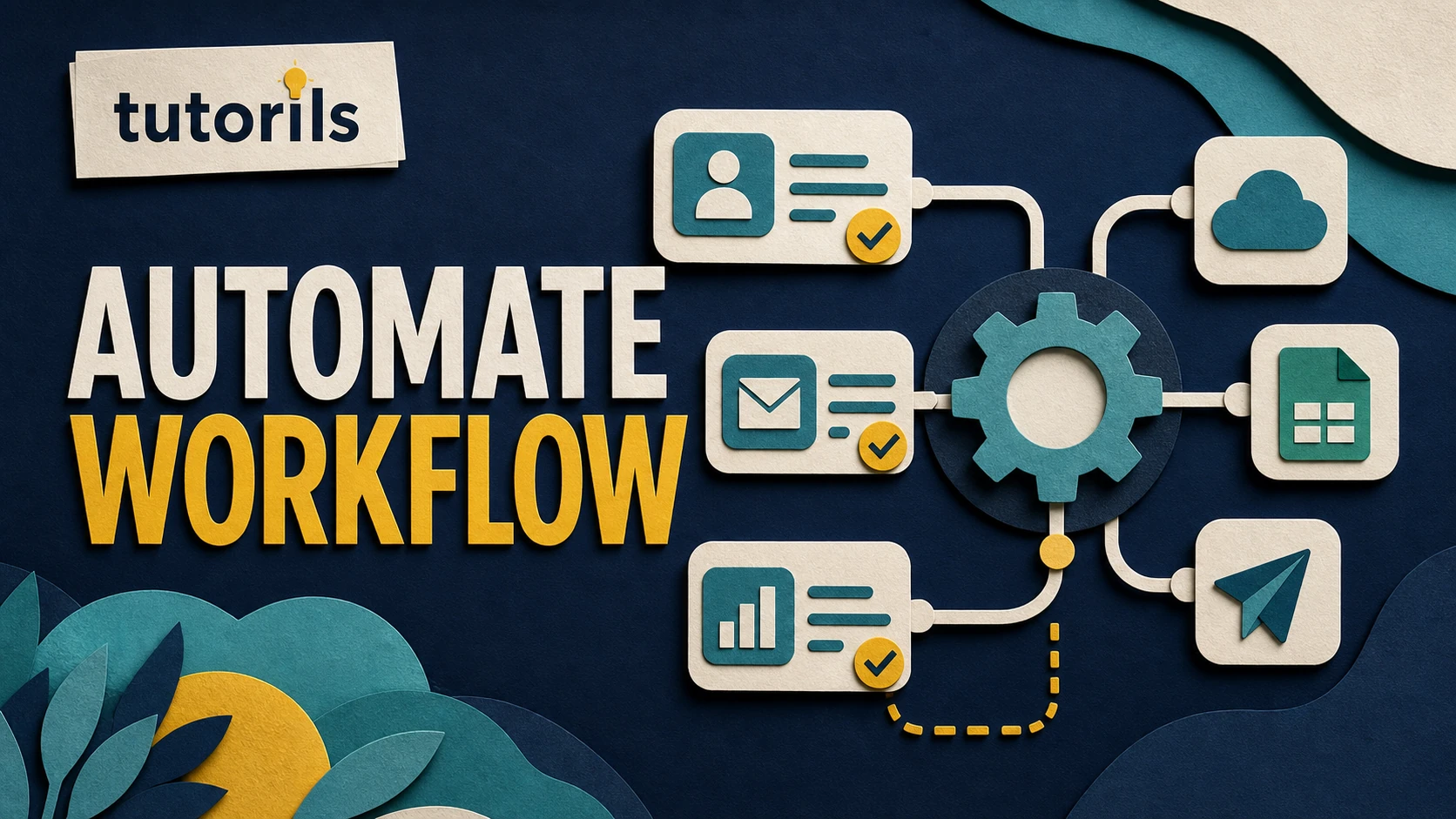
Realistic guide image for this Tutorils tutorial.Why Automate Your Workflow with Zapier?
Zapier connects over 7,000 apps (e.g., Gmail, Trello, Slack) to create automated workflows called “Zaps.” Automating repetitive tasks cuts manual work by 20 - 30% (per Zapier’s 2025 productivity report), freeing time for strategic tasks. In India, where small businesses thrive (50 million MSMEs per Ministry of MSME), a automate your workflow strategy enhances efficiency, reduces errors, and scales operations without hiring extra staff.
- Identify Repetitive Tasks to Automate
The first step to automate your workflow is pinpointing time-consuming tasks.
Step-by-Step Process:
- List daily tasks (e.g., emailing clients, posting to social media, updating spreadsheets).
- Identify repetitive actions (e.g., copying data between apps, sending follow-ups).
- Categorize tasks by app (e.g., Gmail for emails, Google Sheets for data).
- Prioritize high-frequency tasks that take 30+ minutes daily.
- Use Zapier’s “Explore” tab to find automation ideas for your apps.
Real-World Example:
Priya, a Mumbai freelancer, identified sending client invoices as a repetitive task, using Zapier to automate her workflow and save 2 hours weekly.
Pro Tip: Start with simple tasks like email notifications to learn Zapier’s interface.
Why It Works: Targeting repetitive tasks maximizes the impact of your automate your workflow strategy.
- Set Up Your First Zap
Creating a Zap is the core of using Zapier to automate your workflow.
Step-by-Step Process:
- Sign up for Zapier (free plan or ₹1,599/mo for Starter).
- Click “Create Zap” and choose a trigger app (e.g., Gmail for new emails).
- Select a trigger event (e.g., “New Email with Label”).
- Connect an action app (e.g., Slack) and choose an action (e.g., “Send Channel Message”).
- Test the Zap and turn it on to automate your workflow.
Real-World Example:
Rahul, a Delhi marketer, created a Zap to send Slack notifications for new Google Form leads, streamlining his workflow.
Pro Tip: Use Zapier’s templates for common Zaps to save setup time.
Why It Works: Zaps connect apps seamlessly, automating tasks instantly.
3. Integrate Popular Apps for Efficiency
Zapier’s app integrations help automate your workflow across tools you already use.
Step-by-Step Process:
- Connect apps like Google Sheets, Trello, or Instagram to Zapier.
- Create multi-step Zaps (e.g., new Trello card → add to Google Calendar → email reminder).
- Use filters to refine triggers (e.g., only automate emails with “urgent” in the subject).
- Test integrations to ensure data flows correctly.
- Monitor Zap history for errors or missed actions.
Real-World Example:
Sonia’s e-commerce store in Pune used a Zap to add new Shopify orders to Google Sheets, saving 3 hours weekly.
Pro Tip: Explore Zapier’s 7,000+ app integrations for India-specific tools like Razorpay.
Why It Works: Integrations streamline cross-app tasks, enhancing your automate your workflow plan.
- Use Multi-Step Zaps for Complex Workflows
Multi-step Zaps take your automate your workflow strategy to the next level.
Step-by-Step Process:
- Start with a trigger (e.g., new Google Calendar event).
- Add multiple actions (e.g., create Trello task, send WhatsApp message, update CRM).
- Use Zapier’s Paths to customize actions based on conditions (e.g., priority tasks).
- Set delays for timed actions (e.g., follow-up email 3 days later).
- Review and activate the multi-step Zap.
Real-World Example:
Lisa, a Bengaluru startup founder, automated client onboarding with a Zap that added leads to HubSpot, scheduled calls, and sent welcome emails.
Pro Tip: Upgrade to Zapier’s Professional plan (₹4,099/mo) for multi-step Zaps.
Why It Works: Complex workflows save time on intricate processes.
- Monitor and Optimize Your Zaps
Regularly reviewing Zaps ensures your automate your workflow strategy stays effective.
Step-by-Step Process:
- Check Zapier’s Task History for failed or skipped tasks.
- Use Zapier’s analytics to track task usage (free plan allows 100 tasks/mo).
- Test Zaps monthly to ensure app integrations work.
- Update Zaps for new tools or changing workflows.
- Scale up with paid plans for higher task volumes (e.g., 750 tasks/mo for ₹1,599).
Real-World Example:
Vikram, a Chennai consultant, optimized a Zap to sync Google Drive files with Dropbox, fixing errors that saved 1 hour weekly.
Pro Tip: Set email alerts for Zap failures to stay proactive.
Why It Works: Optimization keeps your automate your workflow strategy reliable.
Zapier in 2025: Key Trends
In 2025, Zapier’s AI-driven suggestions recommend Zaps based on your app usage, boosting efficiency. India-specific integrations like UPI apps (e.g., Razorpay) and WhatsApp Business API are trending, supporting MSMEs. Free plans suit beginners, while paid plans (₹1,599 - ₹4,099/mo) offer advanced features like multi-step Zaps. Zapier’s 7,000+ app ecosystem makes it a top choice to automate your workflow.
Pros and Cons of Zapier Automation
StrategyProsConsIdentify TasksTargets time-consuming tasksRequires initial analysisSet Up ZapsEasy setup, beginner-friendlyLimited tasks on free planApp IntegrationsConnects 7,000+ appsSome apps need premium plansMulti-Step ZapsHandles complex workflowsRequires paid planMonitor ZapsEnsures reliabilityTime needed for regular checksRecommended Automation Tools
These tools enhance your automate your workflow strategy. Prices in INR.
ToolPurposePriceKey FeaturesLinkZapierWorkflow automationFree/₹1,599/mo7,000+ app integrations, ZapsZapierMake (Integromat)Automation alternativeFree/₹799/moVisual workflows, custom integrationsMakeIFTTTSimple automationFree/₹299/moBasic app connectionsIFTTTGoogle SheetsData managementFreeSyncs with Zapier for data automationGoogle SheetsTrelloTask managementFree/₹999/moAutomates task creationTrelloSlackTeam communicationFree/₹599/moZapier notifications, integrationsSlackHubSpotCRM automationFree/₹1,500/moLead management, ZapsHubSpotRazorpayPayment automationFree/2% feeIndia-specific payment ZapsRazorpayWhatsApp Business APIMessaging automation₹1,999/moClient communication ZapsWhatsAppGROK by xAIAutomation ideation₹2,500/moAI-driven workflow suggestionsgrok.comFAQ Section
How do I automate my workflow with Zapier in 2025?
To automate your workflow, identify repetitive tasks, set up Zaps, integrate apps, use multi-step Zaps, and monitor performance with these 5 steps.
Is Zapier free to automate my workflow?
Zapier’s free plan offers 100 tasks/month, sufficient to automate your workflow for beginners, with paid plans for advanced features.
What apps work with Zapier to automate my workflow?
Zapier connects 7,000+ apps like Gmail, Trello, and Razorpay to automate your workflow seamlessly.
How much time can Zapier save to automate my workflow?
Zapier can save 20 - 30% of time on repetitive tasks, boosting productivity in your automate your workflow strategy.
Can beginners use Zapier to automate their workflow?
Yes, Zapier’s intuitive interface and templates make it easy for beginners to automate their workflow.
Conclusion
Automating your workflow with Zapier in 2025 saves time, reduces errors, and scales your business or freelance operations. By identifying tasks, setting up Zaps, integrating apps, using multi-step workflows, and optimizing performance, you can streamline your work efficiently. Start your automate your workflow journey today to boost productivity in India’s digital economy!
Got questions or automation tips? Share in the comments, join our newsletter at Tutorils, or explore more productivity guides. Streamline your tasks with a automate your workflow strategy now!
Note: All data and references sourced from reputable platforms. For content issues, contact Tutorils Contact Us.
More Resources
If you find any issues with this post or wish to have it removed, please reach out: Contact Us.
Follow the smallest safe sequence
Work through automate your workflow: 5 steps to streamline tasks with zapier in small, named steps. Read the label and the confirmation message before selecting an option. Complete one stage, check what changed, and only then continue. This is especially useful when a screen contains similar commands such as sync and backup, save and publish, remove and delete, or preview and submit. Similar labels can have very different effects.
Use the AI tool or automation service named in the article directly rather than a link from an unsolicited message. If the guide sends you to a menu, search inside the app or account when the wording has changed. Do not guess when a permission or warning is unclear. Pause and compare it with the tool provider documentation and the original source behind any important claim. For a multi-part task, keep temporary versions so you can return to the last correct stage. A controlled sequence takes a little more attention, but it avoids a chain of changes that becomes difficult to understand or reverse.
Verify each important input
The quality of automate your workflow: 5 steps to streamline tasks with zapier depends on the information you enter. Check names, numbers, dates, file types, dimensions, links, account selections, and spelling against the original source. Copying data can reduce typing mistakes, but copied spaces or punctuation may still cause an error. When a form reformats a value, compare the saved result rather than assuming it kept the original.
For content or design work, separate factual source material from ideas, examples, and working notes. For device tasks, confirm the model, operating system version, storage location, and account before following a menu path. For official services, match every personal detail to the accepted record and never invent a value to pass validation. For AI or automation, remove private data and give the tool only the context needed for the current step. A final input check is faster than repairing a published, submitted, or synchronized mistake.
Test with a low-risk example first
Before applying automate your workflow: 5 steps to streamline tasks with zapier to everything, test the process with one small example. Use a duplicate file, a draft, a single setting, a non-sensitive sample, or one representative page. The test should be realistic enough to expose problems but safe enough to discard. Check the result on the same device and account that the reader or customer will use.
A useful test answers more than whether a button worked. Confirm an output that matches the brief and can be checked against reliable source material. Check loading, readability, permissions, naming, sync behavior, and the path needed to find the result later. If another person will use the outcome, ask them to complete the main action without coaching. Their hesitation often reveals a missing instruction or unclear label. Record the test result and change only one variable before repeating it. This makes the lesson from the test clear and prevents random trial and error.
Review privacy, security, and permissions
Security is part of automate your workflow: 5 steps to streamline tasks with zapier, even when the task appears to be about speed, design, publishing, or convenience. Review which account is active and what access the AI tool or automation service named in the article requests. A feature should receive only the permissions needed for its stated job. Decline access to contacts, storage, microphone, camera, location, email, or cloud files when the feature can work without it.
The main risk in this task is sharing sensitive data, trusting an unsupported answer, or automating a decision without review. Do not share a password, one-time code, recovery key, full card number, or identity document through comments, chat messages, or an unverified support page. Use multi-factor authentication when the service offers it. Remove temporary access after the task and sign out of shared devices. If a third-party tool is involved, read its data controls and deletion options before uploading sensitive material. Convenience is not a good reason to give permanent access to information the tool does not need.
Related Tutorils guides