Losing a phone is bad enough. Discovering that its photos were never backed up makes it worse. Laptop failures create the same problem in a different form: the computer can be replaced, but a folder of family pictures, schoolwork, tax records, or client files may not be recoverable. A free cloud account can protect the files that matter most, provided you set it up deliberately and keep one independent copy.
Best Free Cloud Backup Setup for Phone and Laptop Files
Set up free cloud backup for phone and laptop files with Google Drive, OneDrive, or iCloud, then verify recovery and keep an independent copy.
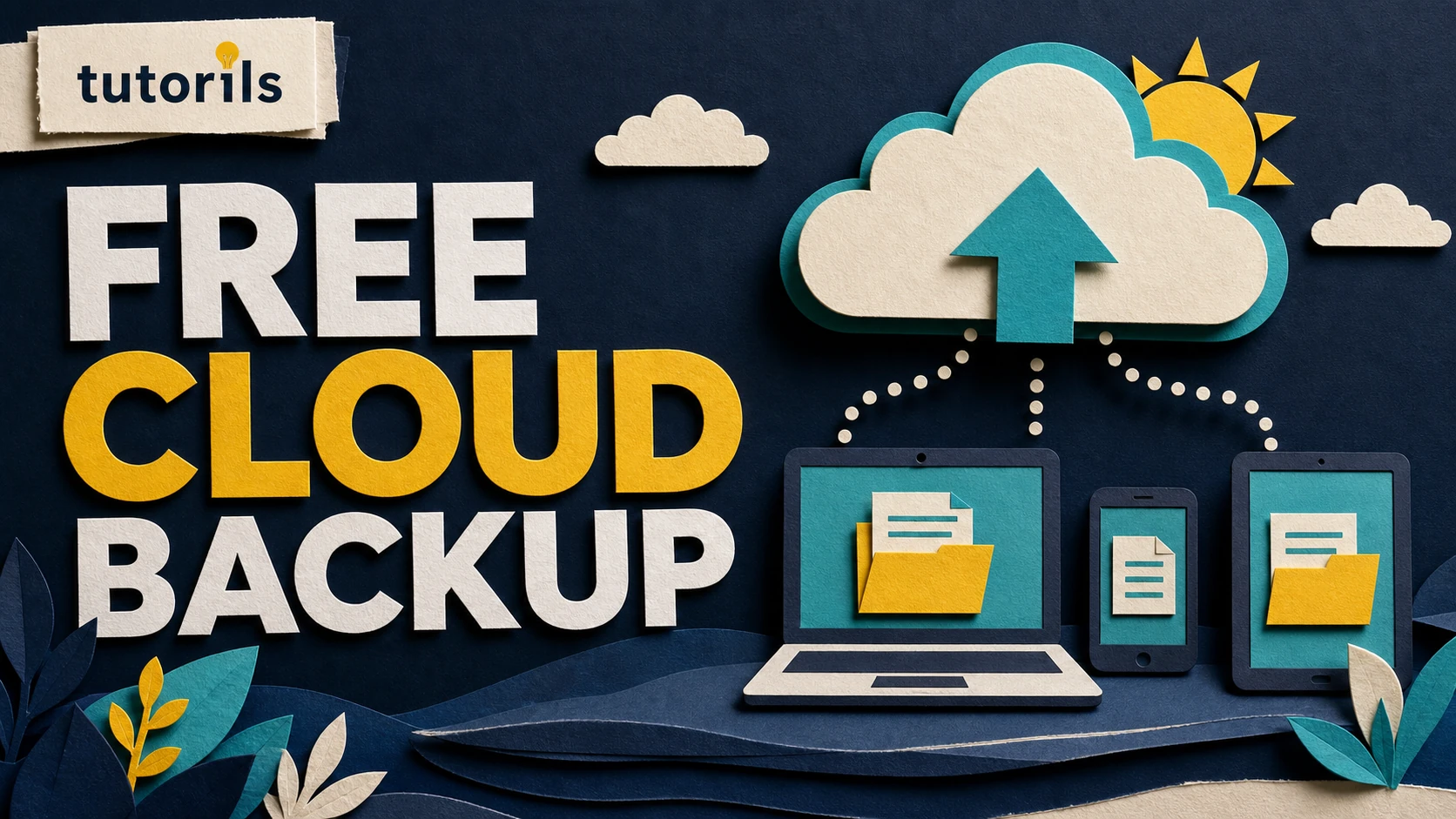
The simplest free cloud backup setup uses one primary service for everyday syncing, one small set of folders that you can check easily, and a second copy of irreplaceable files on a drive that is not left connected. Choose the primary service that matches the accounts and devices you already use. Google is usually the easiest starting point for Android and mixed-device households. OneDrive fits naturally into Windows. iCloud is the most direct choice for an iPhone and Mac.
This guide shows how to back up phone and laptop files without paying for three overlapping subscriptions. It also explains what free cloud storage can and cannot protect, how to verify that an upload really finished, and how to test recovery before you need it.
The best free setup in one minute
Use the following plan if you want a practical answer before reading the detailed steps:
- Choose Google, Microsoft, or Apple as your primary cloud account. Do not begin by installing every available app.
- Turn on photo backup on the phone and select only the important laptop folders.
- Wait for the first upload to finish, then check several files through the provider's website.
- Download one test file and restore one deleted test file. This proves that you know where recovery controls are located.
- Copy irreplaceable files to an external drive once a month. Disconnect that drive after the copy finishes.
- Review storage space and backup status every month, especially after a phone or computer update.
Free plans work best for documents and a carefully selected photo library. Large video collections can fill them quickly. If the account becomes full, new uploads may stop even though the app still appears on the device. A small, verified backup is safer than a large setup that nobody checks.
Compare the free cloud choices
| Service | Free storage | Best fit | Important limit |
|---|---|---|---|
| Google Account | Up to 15 GB | Android, Google Photos, Chrome, and mixed Windows or Mac use | Storage is shared across Google Drive, Gmail, and Google Photos |
| Microsoft OneDrive | 5 GB | Windows laptops and Microsoft accounts | Photos and Windows folders can fill 5 GB quickly |
| Apple iCloud | 5 GB | iPhone, iPad, and Mac | Device backups, iCloud Photos, mail, and files can share the same allowance |
Google documents that each Google Account includes up to 15 GB shared across Drive, Gmail, and Photos in its Google storage guide. Microsoft states that a free Microsoft account includes 5 GB of OneDrive storage in its Windows Backup instructions. Apple lists 5 GB with iCloud in its iCloud introduction.
These allowances and product rules can change, so check the provider's storage page before moving a large library. The best free cloud storage for photos and files is not automatically the service with the highest number. It is the one you will keep signed in, monitor, and know how to restore from.
Understand the difference between sync and backup
Cloud apps often use the words backup and sync as if they mean the same thing. They do not always provide the same protection. Sync keeps a folder or photo library consistent across devices. If you edit a synced file, the change appears elsewhere. If you delete a synced file, that deletion may also reach the cloud and other devices. A backup is a recoverable copy that remains useful after the original is damaged, deleted, or encrypted.
Google Drive for desktop, OneDrive folder backup, and iCloud Drive all include sync behavior. Their trash, recycle bin, or version history can help with some mistakes, but those tools have limits and retention windows. They also depend on continued access to the same account. This is why the setup in this guide adds an external copy for the files you cannot replace.
Treat the cloud as your convenient working copy. Treat the disconnected drive as your independent recovery copy. If you want a cleaner folder structure before uploading, use the Tutorils guide to organize files in cloud storage. Good organization makes it easier to notice when a folder is missing from the backup.
Step 1: decide what deserves backup
Do not upload an entire laptop by habit. Start with a short inventory. On the phone, look at camera photos, downloaded documents, scanned receipts, voice recordings, and files created by messaging or note apps. On the laptop, check Desktop, Documents, Pictures, and any folder used for work or study. Downloads often contains replaceable installers and temporary files, so review it instead of syncing it blindly.
Separate the files into three groups. The first group contains irreplaceable personal or business records. The second contains useful files that could be downloaded again with some effort. The third contains temporary files, duplicates, application caches, and old installers. Back up the first group before anything else. Add the second group only if storage remains. Leave the third group out.
Check the size of the selected folders before choosing a provider. A 4 GB document collection fits any of the free plans in the table, but a phone holding 80 GB of video does not. For a large photo library, you may need to reduce duplicates, back up only favorites to the free account, or use an external drive for the archive. If Android storage is already full, follow the safer steps in how to clear Android storage without deleting important files after the backup has been verified.
Step 2: secure the account before uploading
A cloud backup is useful only while you can access the account. Confirm the recovery email address or phone number, then turn on the provider's strongest sign-in option that works across your devices. A passkey or two-step verification reduces the risk that a stolen password exposes every backed-up file. The Tutorils passkey safety guide explains how to avoid locking yourself out while improving account security.
Store recovery information somewhere outside the cloud account it protects. For example, do not keep the only copy of a Google backup code inside the same Google Drive. Google advises users with two-step verification to keep backup codes safe and explains that each code can be used once. Similar logic applies to recovery keys and emergency codes from other providers.
Use a unique password if a passkey is not available on every device. Review active sessions and remove devices you no longer own. Do not share cloud credentials with family members just to give them file access. Use the provider's folder sharing controls instead, and grant access only to the folder they need.
Step 3: set up Google for Android and a laptop
For an Android phone, Google Photos is the straightforward option for camera photos and videos. Open Google Photos, select the correct Google Account, and turn on Backup. Check which device folders are included. Screenshots, messaging images, and files saved by other apps may live outside the camera folder, so add only the folders you genuinely want. Google's Photos backup instructions explain supported file types, account selection, and storage requirements.
On a Windows laptop or Mac, install Google Drive for desktop from Google rather than an advertisement or download mirror. Open Preferences and choose the local folders that should sync. Google offers Stream files and Mirror files for My Drive. Streaming saves local disk space because most files remain in the cloud until opened. Mirroring keeps My Drive files on the computer and in the cloud, so it uses more laptop storage but allows offline access. Google's streaming and mirroring guide warns users to confirm that recent changes have synced before switching modes or deleting an old mirrored folder.
For a beginner, use streaming for a small laptop drive and mark the few folders needed offline. Use mirroring when the laptop has enough space and you regularly work without internet. Remember that either mode still synchronizes changes. Keep the separate external copy for the most important data.
Step 4: set up OneDrive for a Windows laptop and phone
Windows Backup and OneDrive can protect common Windows folders without making you choose every file manually. Sign in with the personal Microsoft account you intend to keep. Open Windows Backup from Start, expand Folders, and choose the folders you need. Microsoft currently lists Desktop, Documents, Pictures, Videos, and Music among the available folders. The free account includes 5 GB, so enabling every folder may exceed the allowance.
You can also open OneDrive Settings, select Sync and backup, and choose Manage backup. Microsoft's OneDrive folder backup guide covers this route and explains what happens when folder backup is stopped. Read the stop-backup choices before selecting one because files may remain in OneDrive or move back to the computer depending on the option.
On Android or iPhone, the OneDrive app can upload the camera roll. Confirm the account shown in Camera backup and decide whether videos should be included. Microsoft notes that camera backup on mobile saves photos and videos to OneDrive. It is separate from the general file sync behavior on a PC. After enabling it, keep the app open long enough for the first large upload and check the status before deleting anything from the phone.
OneDrive is usually the cleanest free choice when the Windows laptop is the center of the setup. Its 5 GB limit makes it less suitable for a large phone photo library unless you select photos carefully.
Step 5: set up iCloud for an iPhone and Mac or Windows PC
On an iPhone or iPad, iCloud includes several separate controls. iCloud Drive stores files from the Files app and supported apps. iCloud Photos keeps the photo library current across signed-in devices. iCloud Backup stores device information that can help restore the device. Check each control rather than assuming that turning on one covers everything.
For iCloud Drive, open Settings, select your name, choose iCloud, then Drive or iCloud Drive, and turn on Sync this device. On a Mac, open System Settings, select your name, choose iCloud and Drive, then decide whether Desktop and Documents should be included. Apple's iCloud Drive setup guide also explains how to enable iCloud Drive through iCloud for Windows and find it in File Explorer.
For a full iPhone or iPad device backup, open Settings, select your name, choose iCloud, then iCloud Backup. Turn on automatic backup or select Back Up Now. Apple says automatic iCloud Backup runs when the device is connected to power and Wi-Fi and its screen is locked. Check the date and time of the last successful backup.
iCloud's 5 GB free allowance is shared by several types of data, so a device backup and photo library can compete for the same space. If you keep important files in iCloud, Apple recommends making another copy and provides steps to archive or copy iCloud information. That second copy matters because iCloud Drive and iCloud Photos are designed to keep devices in sync.
Step 6: add a disconnected copy
A free cloud account should not be the only home for files that cannot be replaced. Connect an external drive, create a folder named with the backup date, and copy the important folders into it. Open several copied files before disconnecting the drive. A successful copy message is useful, but opening the files is a stronger check.
Keep the drive disconnected when it is not being used. CISA's device data protection guidance advises against leaving an external backup drive connected because ransomware may be able to reach and damage the backup. Store the drive in a dry, secure place away from the laptop. If the data is highly sensitive, use the drive's supported encryption and keep the recovery key separate.
Update this copy monthly, or more often if the files change every day. A student writing a dissertation or a freelancer managing active client work may need a weekly copy. A household archive that changes rarely may be fine with a monthly check. The right schedule is the one that limits how much work you would have to recreate after a failure.
Step 7: verify the first backup
Do not rely on a green check mark alone. Use a small recovery drill:
- Create a text file named backup-test with today's date inside it.
- Save it in a selected laptop folder and confirm that it appears on the provider's website.
- Open the same file on the phone or another supported device.
- Download a fresh copy and compare its contents.
- Delete the test file, find it in Trash, Recycle bin, or Recently Deleted, then restore it.
- Confirm that the restored file returns to the expected folder.
Google says Drive files remain in Trash for 30 days before permanent deletion in its file recovery guide. Microsoft says items in the OneDrive recycle bin for personal accounts are automatically deleted after 30 days in its OneDrive recovery guide. Work or school account policies can differ. Check the current rule for your own provider and account type.
Repeat a smaller version of this test every few months. Recovery controls can move, apps can lose permission after an update, and an account can quietly run out of storage.
Common mistakes that make a cloud backup unreliable
The most damaging mistake is deleting local files as soon as an upload begins. Wait until the provider reports completion, check the web account, open several files, and confirm the independent copy before removing originals. If deleted Android photos are still recoverable, the Tutorils guide to recover deleted photos on Android explains the places worth checking.
Another common error is backing up the same folder with two desktop sync apps. Google Drive and OneDrive may both try to move, rename, or synchronize items. Keep their watched folders separate unless both providers explicitly support the arrangement you intend to use.
People also confuse phone storage with cloud storage. Freeing local space does not increase a Google, Microsoft, or Apple cloud allowance. Likewise, buying a laptop with a larger drive does not increase the cloud quota. Check both numbers separately.
Finally, an app can be installed without actively backing up. Permissions may be disabled, mobile data may be restricted, battery saving may pause background work, or the selected account may be wrong. Open the backup page and read the current status. Look for the last successful time, remaining items, and any storage warning.
Recommended setup for common device combinations
Android phone and Windows laptop
Use Google Photos for the phone camera and Google Drive for selected laptop folders if you want one account across both devices. If Windows folder protection is more important than the photo library, use OneDrive for Desktop and Documents, then upload only selected phone photos. Avoid sending the same large Pictures folder to both services.
iPhone and Mac
Use iCloud Photos, iCloud Drive, and iCloud Backup with the same Apple Account. Review the 5 GB allowance because it can fill quickly. Export important photos and documents to an external drive on a schedule.
iPhone and Windows laptop
Choose one center. Use iCloud Photos and iCloud Drive if the iPhone library is the priority, then install iCloud for Windows. Use OneDrive if the Windows folders are the priority and enable camera backup in the iPhone app. Do not assume that an iCloud device backup protects every Windows file.
Android phone and Mac
Google Photos and Google Drive provide the simplest shared account. Install Drive for desktop on the Mac, select only the necessary folders, and decide whether streaming or mirroring fits the available disk space. Keep the independent external copy formatted for the devices you will use during recovery.
A monthly cloud backup checklist
Set a recurring reminder and complete these checks in about ten minutes:
- Open the provider's storage page and confirm that space remains.
- Check the last successful phone photo or device backup.
- Review the selected laptop folders and confirm that none was renamed or moved.
- Open one recent file through the provider's website.
- Check account recovery methods and remove old devices.
- Copy new irreplaceable files to the disconnected drive.
- Restore a test file if you have not tested recovery recently.
Do not measure success by the number of files shown in an app. A useful backup is current, accessible from the correct account, and recoverable through a process you have tested. Start with a small set of important data, verify it, then add more only when the free allowance and your maintenance routine can support it.
Reader answers
Frequently asked questions
Open a question to read the answer. Opening another answer closes the previous one.
What is the best free cloud backup for both phone and laptop?
Choose the service that matches your main devices: Google for Android or mixed devices, OneDrive for Windows, and iCloud for Apple devices. Add a disconnected external copy for files you cannot replace.
Is Google Drive free for phone and laptop backups?
A Google Account includes up to 15 GB shared across Drive, Gmail, and Google Photos. It can cover selected laptop folders and phone photos, but large video libraries may need more space.
Is OneDrive free for Windows backup?
A free Microsoft account includes 5 GB of OneDrive storage. Windows Backup can sync selected common folders to OneDrive, but 5 GB may fill quickly if Pictures or Videos contains large files.
Does iCloud back up files from a Windows laptop?
iCloud Drive can sync files through iCloud for Windows, but it is not a full Windows system backup. Select the files placed in iCloud Drive and keep another copy of important laptop data.
Is cloud sync the same as a backup?
No. Sync can carry edits and deletions across devices. Recovery bins and version history help with some mistakes, but an independent copy on a disconnected drive provides stronger protection.
How much free cloud storage do I need?
Check the size of your selected folders and phone photos first. Back up irreplaceable files before replaceable downloads. If the total exceeds the free allowance, reduce the selection or use an external drive for the archive.
Can I use Google Drive and OneDrive on the same laptop?
Yes, but keep their synced folders separate. Do not let both services manage the same Desktop, Documents, or Pictures folder unless you understand the provider settings and have tested the result.
How do I know my cloud backup finished?
Check the app's current status, then sign in through the provider's website. Open recent files, download a test file, and confirm that phone photos or selected laptop folders appear in the correct account.
Can I recover files deleted from cloud storage?
Often, if they are still in the provider's recovery area. Google Drive and personal OneDrive accounts currently keep deleted items for 30 days. Check the policy for your service and account type before relying on it.
Should I delete phone photos after cloud backup?
Only after the upload is complete and you have opened several photos through the web account. For irreplaceable photos, also keep an independent copy before clearing the phone.