An iPhone that suddenly struggles to last through the day does not always have a worn-out battery. A recent update may still be finishing background work. One app may be using location or mobile data for hours. Poor signal can make the phone work harder, and a bright screen can consume far more power than expected. The useful question is not which setting everyone should disable. It is what changed on this particular iPhone.
Fix Your iPhone Battery Drain with These 7 Tips
Diagnose sudden iPhone battery drain with seven evidence-led checks covering app activity, display use, power modes, signal strength, and battery health.
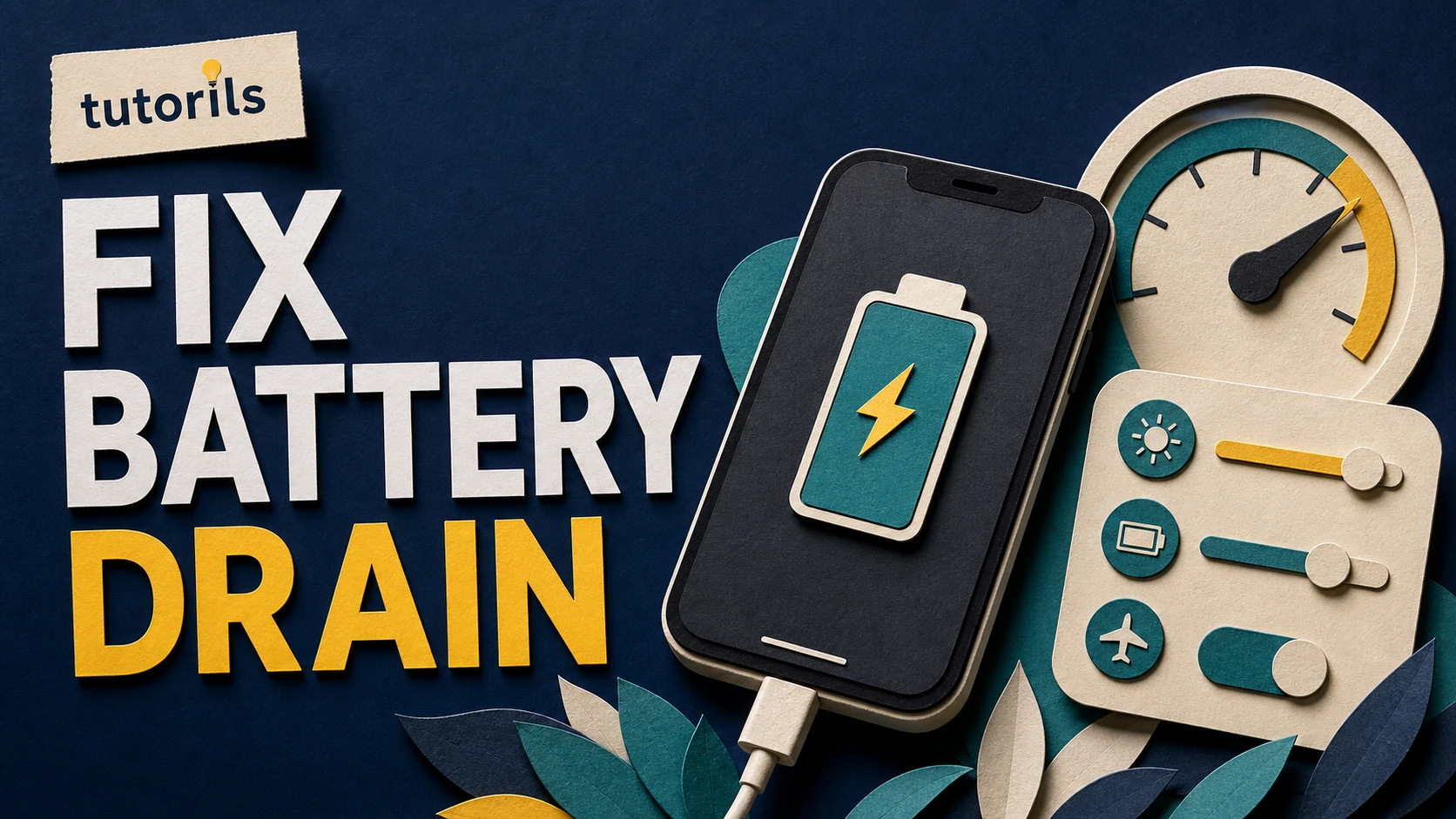
This guide gives you seven practical checks in the order that makes sense. Start with the evidence in Settings, change one or two things at a time, and compare a normal day before deciding that the battery needs service.
Check the evidence before changing settings
Open Settings > Battery. On current iOS versions, this area shows battery suggestions, recent use, and the apps or system activities that consumed power. Apple says the Daily Usage view in iOS 26 compares today with the previous seven days. If your iPhone runs an earlier version, the labels and chart may look different, but the app list still gives you the best starting point.
Look for a clear pattern rather than blaming the first app in the list. A navigation app can legitimately use a large share of the battery during a long drive. A video app can be the top user after two hours of streaming. The suspicious case is an app using much more power than your actual use explains.
Tap an app or inspect its activity details. Apple may label causes such as Background Activity, Notifications, or No Mobile Coverage and Low Signal. Those labels tell you which fix is worth trying. They are more useful than copying a long list of settings from somebody else's phone.
If the drain began today, note the battery percentage and time. Use the phone normally for a few hours, then check the Battery page again. A short test with a known starting point makes the next seven steps easier to judge.
1. Update iOS and allow background work to finish
Open Settings > General > Software Update and install the latest version available for your device. Connect to reliable Wi-Fi and power before a major update, and make sure you have a current backup. Our phone and laptop backup guide explains how to protect important files before larger maintenance jobs.
A battery can drain faster for a while after an iOS update or a new-device setup. Apple explains that indexing, setup, and other tasks may continue in the background even though the phone is ready to use. In Settings > Battery, you may see an Insight such as Ongoing iOS Update or Ongoing Device Setup. Let that work finish and check again after a few normal days.
Do not repeatedly restart, erase, or restore the phone while the update is still settling. That creates more work and makes comparison difficult. If the Battery page identifies ongoing system activity, time and a charger are often the right response.
2. Reduce display power without making the phone unpleasant
The display is often one of the largest power users. Start with changes you can live with. Pull down Control Center and lower brightness to a comfortable level. You do not need to keep the screen dim enough to strain your eyes.
Turn on Auto-Brightness under Settings > Accessibility > Display & Text Size > Auto-Brightness if you previously disabled it. Apple may also show an Enable Auto-Brightness suggestion on the Battery page. The feature adjusts the display for current light instead of leaving it at one high level all day.
Next, open Settings > Display & Brightness > Auto-Lock and choose a sensible interval. If Auto-Lock is set to Never, the display can stay awake after you put the phone down. A short interval is useful, but choose one that does not interrupt reading or accessibility needs.
Always-On display options are available only on supported models. If the phone loses too much charge while sitting untouched, test with Always-On display off for one day. Keep the change only if it produces a noticeable improvement in your actual routine.
3. Use Low Power Mode at the right time
Low Power Mode is a supported way to extend remaining battery life. On current iOS, go to Settings > Battery > Power Mode, then enable Low Power Mode. You can also add the control to Control Center. Apple says Low Power Mode reduces or disables features such as Mail fetch, Background App Refresh, some visual effects, and certain automatic activities.
This mode is useful on travel days, during a power cut, or whenever you know the next charge is hours away. It is not a repair for a damaged battery. If the phone still drops quickly while almost idle, continue checking app activity, signal strength, and battery health.
Supported devices running iOS 26 can also offer Adaptive Power. Apple lists device requirements on its current battery-drain support page, so do not assume that the setting exists on every iPhone. Adaptive Power can make small performance adjustments when usage is higher than usual and can turn on Low Power Mode automatically at 20 percent.
4. Control background activity app by app
Return to Settings > Battery and identify apps marked for Background Activity. Before disabling anything, ask whether the background task is expected. Music playback, navigation, file uploads, voice calls, and fitness tracking may need to continue when the screen is off.
For an app that has no good reason to refresh in the background, open Settings > General > Background App Refresh. Turn the permission off for that app instead of disabling it for everything. A selective change protects useful functions and gives you a cleaner test.
Location access deserves the same careful approach. Open Settings > Privacy & Security > Location Services, choose the app, and select the least access that still lets it work. A weather app may only need location while in use. A navigation or safety app may need more. Do not disable systemwide location services simply because one app appears in the battery list.
If an unfamiliar app shows unexplained activity, update it, review its permissions, and remove it if you do not trust or use it. Unexpected battery drain by itself does not prove compromise. Check the broader signs in our guide to finding out whether a phone is hacked before drawing that conclusion.
5. Cut notification wake-ups that do not help
Every notification does not consume a dramatic amount of power, but a stream of alerts can repeatedly wake the screen and encourage extra app use. The Battery page may call out Notifications for an app that wakes the device often.
Open Settings > Notifications and review the busiest apps. Keep time-sensitive alerts from banking, travel, work, health, and security services. For shopping, games, news, or social apps, consider turning off Lock Screen alerts, sounds, or the permission entirely. A scheduled summary can be a better fit for messages that do not require an immediate response.
This cleanup should make the phone calmer, not less safe. If you want to reduce visual clutter as well, the calm phone home-screen guide offers a broader setup that keeps essential apps available without putting every alert in front of you.
Test after the notification changes. A lower daily screen-on time may explain some of the improvement, which is still useful. It means fewer interruptions are helping both attention and battery life.
6. Fix weak signal and choose Wi-Fi when practical
A phone uses extra energy when it keeps searching for service. Apple specifically lists No Mobile Coverage and Low Signal as a battery-usage condition. If the battery falls fastest at work, on a train, or in one room, compare the cellular signal in that location.
Connect to trusted Wi-Fi when it is available. Apple says Wi-Fi generally uses less battery than cellular data for internet activity. On supported 5G devices, Settings > Cellular > Cellular Data Options > Voice & Data > 5G Auto allows Smart Data mode to use LTE when 5G does not provide a noticeable benefit. Menu names can vary by carrier and device.
If you will be somewhere with no coverage for a long period and do not need to receive calls, Airplane Mode stops the repeated network search. Remember that Airplane Mode disconnects cellular service, and review Wi-Fi or Bluetooth separately if you still need them.
A persistent signal fault should be fixed rather than hidden. Work through the checks in our smartphone no-signal troubleshooting guide, including carrier status, SIM or eSIM settings, and network selection. A network problem can look like a battery problem because both appear at the same time.
7. Read Battery Health and recognize when service is the fix
Settings changes cannot restore chemical capacity that a battery has already lost. Apple describes rechargeable batteries as consumable parts. Their capacity and ability to provide peak power decline with chemical age.
On iPhone 15 and later, open Settings > Battery > Battery Health. On iPhone 14 and earlier, the menu may be Battery Health & Charging. Read the status message as well as Maximum Capacity. Apple says Maximum Capacity compares current capacity with the battery when it was new, but the exact percentage depends on use and charging history.
If the screen shows Service, a significantly degraded message, or repeated unexpected shutdown warnings, contact Apple or an Apple Authorized Service Provider. A replacement can restore capacity and performance when the battery is the cause. If the phone says it cannot verify the battery, the displayed health details may not be accurate, so arrange an inspection instead of treating the percentage as definitive.
Heat also matters. Apple advises avoiding prolonged charging or use in hot environments, including direct sunlight. Remove the phone from heat and let it cool naturally. Do not put it in a refrigerator or freezer. Extreme cold can also affect temporary performance, but a warm phone during heavy gaming, navigation, charging, or an update does not automatically indicate a defect.
How to test whether the fixes worked
Change only the settings supported by the evidence you found. Then charge the phone, record the starting percentage, and use it through a typical day. Compare screen-on time, app activity, signal conditions, and the ending percentage with the earlier day. A one-day result is more useful when the routine is similar.
Do not judge the battery by standby loss alone if the phone spent one night backing up photos and another night idle. Also avoid closing every app from the app switcher as a daily ritual. Force-close an app when it is frozen or clearly misbehaving, then reopen it and watch its activity.
If one app remains far above expected use, install its update, check its own download and playback settings, or reinstall it after confirming that its data is synced. If drain occurs only in one place, investigate signal. If it follows a system update, wait for background work to complete. If every day is poor and Battery Health shows service, settings are unlikely to solve the underlying wear.
When to seek help quickly
Stop using and charging an iPhone if the battery appears swollen, the enclosure separates, the screen lifts, or the device has suffered serious heat or liquid damage. Do not press the screen back into place or puncture the battery. Contact Apple Support or a qualified service provider for safe handling instructions.
For ordinary drain without physical damage, collect useful evidence before the appointment: iPhone model, iOS version, Battery Health message, recent battery charts, when the problem began, and whether it happens on Wi-Fi, cellular, or both. That information helps separate software activity, signal issues, and battery wear.
The best battery setup is the one that preserves the functions you rely on. Use Apple's Battery page to identify the cause, make targeted changes, and give each change a fair test. If the evidence points to a worn battery, service is more honest and effective than disabling half the phone.
Reader answers
Frequently asked questions
Open a question to read the answer. Opening another answer closes the previous one.
Why is my iPhone battery draining so fast suddenly?
A recent update, setup activity, weak signal, high display use, or one busy app can cause sudden drain. Open Settings > Battery and compare app and system activity before changing several settings.
Does Low Power Mode harm an iPhone battery?
No. Low Power Mode is an Apple feature that reduces selected background tasks and effects to extend remaining use. It does not repair an aged battery, and it turns off automatically after sufficient charging.
Should I close all iPhone apps to save battery?
Not as a routine. Force-close an app when it is frozen or clearly misbehaving. Use Settings > Battery to find unexplained activity instead of repeatedly closing every app without evidence.
Why does an iPhone drain after an iOS update?
Indexing, setup, and other system tasks can continue after an update. Apple advises waiting a few days and checking Battery Insights. Drain should settle when the background work finishes.
How can I see which app is draining my iPhone?
Open Settings > Battery, view the usage chart, and inspect App and System Activity. Tap an app for more detail and look for labels such as Background Activity, Notifications, or low signal.
Can weak cellular signal drain an iPhone battery?
Yes. Searching for service uses power. Use trusted Wi-Fi where practical, investigate persistent signal faults, or enable Airplane Mode during long periods with no coverage when you do not need cellular service.
What iPhone battery health percentage needs replacement?
Do not use one percentage alone. Read the Battery Health status and consider your actual runtime. If iOS shows Service, significant degradation, or repeated shutdown warnings, ask Apple or an authorized provider to inspect it.
Does dark mode always save iPhone battery?
Savings depend on the display type, brightness, and content. Lowering excessive brightness and shortening unnecessary screen-on time are more broadly useful. Keep a display setting only if it improves your measured daily result.
Can notifications cause iPhone battery drain?
Frequent alerts can wake the display and increase app use. The Battery page may identify Notifications as activity. Keep important alerts and reduce Lock Screen, sound, or immediate delivery for low-priority apps.
When is iPhone battery drain a safety problem?
Stop using and charging the phone if the battery swells, the screen lifts, or the device has serious heat or liquid damage. Contact Apple Support or a qualified service provider for safe handling.