A slow Windows laptop does not automatically need more RAM, and an SSD is not a cure for every delay. The right upgrade depends on what the laptop is waiting for. Memory pressure usually appears when too many active apps and browser tabs must share limited RAM. Storage delays are more likely when Windows, apps, and files still load from a mechanical hard disk or when the system drive is nearly full.
How to Decide Whether a Slow Windows Laptop Needs More RAM or an SSD
Use Task Manager, storage details, and model-specific documentation to decide whether RAM, an SSD, another repair, or a replacement is the sensible choice.
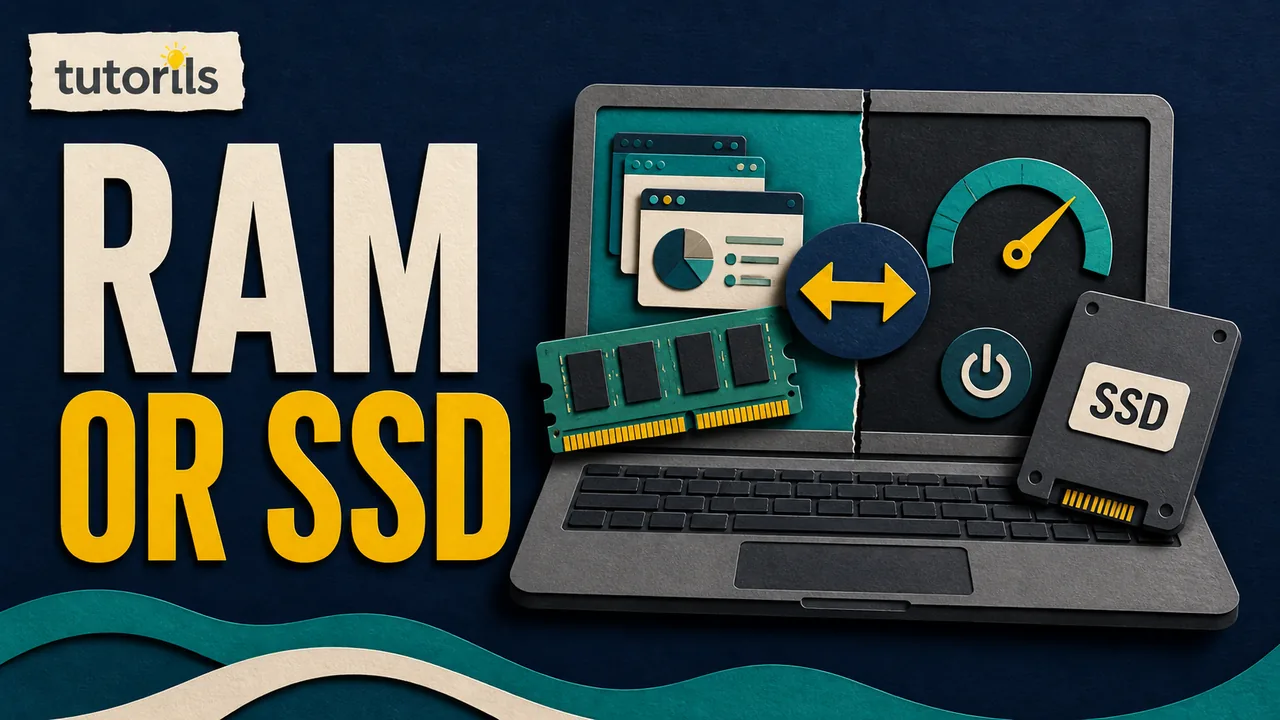
You can separate those problems with tools already built into Windows. The process takes longer than reading one percentage in Task Manager because CPU load, heat, malware, updates, and a failing drive can produce similar symptoms. A short diagnosis before buying parts can prevent an incompatible purchase and show when neither upgrade will solve the real problem.
This guide focuses on choosing between a RAM upgrade and an SSD upgrade. It does not promise a specific speed increase. Results depend on the laptop model, current hardware, workload, drive condition, cooling, and whether the components are replaceable.
Start with the difference between RAM and storage
RAM holds information that Windows and open applications are actively using. Its contents disappear when the laptop turns off. More RAM gives active programs more room to work at the same time. Microsoft explains that devices with more memory can handle more simultaneous activity without the same performance slowdown.
An SSD stores Windows, installed applications, and personal files even when the power is off. It replaces or supplements permanent storage such as a hard disk drive. Microsoft describes SSDs as smaller and faster than HDDs, while mechanical hard drives remain common in older devices.
The distinction leads to a practical rule:
- Consider more RAM when normal multitasking consistently fills memory and the laptop begins pausing, reloading apps, or struggling as more work stays open.
- Consider an SSD when the laptop boots and opens files from a mechanical hard drive, disk activity stays busy during ordinary loading, or the existing system drive lacks usable free space.
- Investigate another cause when CPU usage, heat, malware, a damaged drive, or unsupported software explains the slowdown.
RAM and an SSD can complement each other. A laptop with little memory and a slow hard disk may suffer from both limits. That does not mean you should buy both immediately. Diagnose the larger bottleneck, confirm compatibility, and compare the total cost with the value of the laptop.
Write down the slow task before opening Task Manager
Use a repeatable example. "The laptop feels slow" is too broad. A useful description might be:
- Windows needs several minutes to settle after sign-in.
- Switching between a video call, spreadsheet, and browser causes long pauses.
- Opening a large project or searching a file folder takes too long.
- The browser reloads tabs after you return to them.
- Saving, copying, or installing files keeps the disk busy.
- A game has low frame rates even after it has loaded.
Restart the laptop, wait for sign-in activity to settle, and repeat the task once. Record which programs are open and whether the laptop is plugged in. Do not compare a cold startup with a later test that has different apps, updates, or power settings.
If you have not ruled out software causes, use the Tutorils guide to speed up a slow Windows laptop without resetting it. Updates, startup apps, low free space, background sync, and malware deserve attention before any purchase.
Use Task Manager to watch the bottleneck
Microsoft's Windows system tools guide describes Task Manager as a way to assess CPU load, memory use, disk activity, and network use. Press Ctrl + Shift + Esc or right-click Start and choose Task Manager. If the compact view opens, expand it to see more detail.
Open the Processes tab first. Sort by CPU, Memory, and Disk one at a time while repeating the slow task. Then open Performance and watch the graphs. The goal is not to reach an arbitrary perfect percentage. You are looking for a resource that stays heavily occupied when the delay occurs.
Take notes over several minutes:
- Which task triggers the slowdown?
- Does memory remain close to full as you switch among normal apps?
- Does disk activity remain high while applications or files are loading?
- Is one process consuming most of the CPU instead?
- Does the slowdown begin only after the laptop becomes hot?
A short spike is normal. Opening a program uses CPU, memory, and storage together. A useful diagnosis connects sustained pressure with the symptom. If memory becomes crowded only during an unusually large project, decide whether that project is part of your regular work. If a backup or update briefly drives disk activity, wait for it to finish and test again.
Do not end unfamiliar Windows processes merely to make the numbers lower. Identify the program, save your work, and use the application's normal controls. If an unknown process behaves suspiciously, run Windows Security and seek qualified help rather than guessing.
Signs that more RAM is the better first upgrade
RAM is the stronger candidate when the slowdown grows with multitasking. The laptop may work adequately after a restart, then struggle as browser tabs, office apps, communication tools, and large documents remain open.
Common signs include:
- Memory use remains high throughout your normal workload after startup activity settles.
- Switching back to an app causes a long wait or forces content to reload.
- Closing one or two large applications makes the laptop responsive again.
- A creative or technical application warns that available memory is low.
- The storage drive becomes active while memory is crowded because Windows must move some working data between RAM and storage.
Microsoft's computer memory overview says 4 GB can cover basic browsing, documents, or streaming, recommends 8 GB for longer-term general use, and suggests 16 GB or more for photo and video work or other demanding projects. Treat those figures as broad guidance. The software you actually use may publish higher requirements, and several modest applications together can require more memory than any one app alone.
Check the installed amount in Task Manager under Performance, Memory, or in Settings under System, About. Task Manager may also show memory speed, slots in use, and form factor. Those details help, but the laptop maker's service manual is the final compatibility source.
More RAM will not repair a failing drive, speed up a slow internet connection, improve a weak processor, or fix overheating. It also has diminishing value once the normal workload fits comfortably in current memory. If memory use stays moderate while disk or CPU activity causes the pauses, buy nothing until that cause is understood.
Signs that an SSD is the better first upgrade
An SSD is the stronger candidate when Windows runs from a mechanical HDD. The clearest symptoms occur during storage work: starting Windows, launching applications, opening many small files, searching folders, installing updates, or moving data.
Microsoft's storage-type overview explains that SSDs are faster than HDDs and have no moving parts. This supports the general choice without promising an exact boot time or application speed for your laptop.
Check the drive type before shopping. In Windows 11 or a current Windows 10 installation, open Settings, System, Storage, then Advanced storage settings and Disks & volumes. Microsoft's Storage settings documentation says this area can show disk type, capacity, and usage. You can also search for Defragment and Optimize Drives, where Windows distinguishes hard drives from solid-state drives for the correct maintenance operation.
Consider an SSD first when:
- The Windows system drive is listed as an HDD.
- Disk activity remains busy while the laptop starts, opens programs, or loads local files.
- The drive makes unusual mechanical noises or produces storage errors. Back up immediately and obtain a proper health assessment in this case.
- The existing drive is consistently short of space and cleanup cannot create enough room for normal work and updates.
Low free space is a capacity problem before it is an interface problem. Microsoft says a PC that is running out of storage may slow down or have trouble installing updates. Use Storage settings and Cleanup recommendations to understand the space. Do not buy a faster but equally cramped drive if your files and applications already exceed the useful capacity.
If the laptop already has an SSD and adequate free space, replacing it with another SSD may improve some storage-heavy work, but it may not change an ordinary workload in a noticeable way. Check RAM, CPU, thermals, software, and the condition of the current drive before assuming a newer storage interface is the answer.
Use a decision table instead of a single percentage
| What you observe | More likely direction | What to confirm |
|---|---|---|
| Slowdown gets worse as more apps and tabs remain open | RAM | Normal workload keeps memory crowded, and closing apps helps |
| Windows and apps load from a mechanical hard drive | SSD | The system drive is an HDD and is replaceable |
| Drive is nearly full | Larger storage or cleanup | Required capacity, current backups, and compatible drive type |
| CPU stays heavily used during the slow task | Neither first | Process, application requirements, cooling, and processor limits |
| Laptop slows when hot and the fan runs hard | Neither first | Ventilation, dust, power mode, battery condition, and service needs |
| Disk reports a critical warning or storage errors | Replace and recover safely | Backup status, drive health, warranty, and professional support |
| Memory and disk both stay pressured in daily work | Possibly both | Upgradeability, total cost, and whether the CPU remains adequate |
The table narrows the choice, but it does not replace model-specific checks. A cheap part is expensive if it cannot be installed or does not address the measured problem.
Confirm that the RAM can be upgraded
Many thin laptops have memory soldered to the system board. Some combine soldered memory with one removable slot. Others use one or two replaceable modules. Do not buy RAM from the capacity shown in Windows alone.
Find the exact model and service identifier on the laptop, in Settings, or in the maker's support application. Open the official product specifications and service manual. Check:
- whether memory is soldered, removable, or mixed
- the number of slots and how many are occupied
- the supported DDR generation and module form factor
- the maximum supported capacity for the exact configuration
- whether modules need to be installed in matched pairs
- the installation and safety procedure
Dell's current RAM upgrade guidance notes that some laptop memory is integrated and cannot be upgraded. It also warns that the system board supports a specific memory generation and capacity. The same principle applies to every brand: use documentation for the exact model, not a shopping-page claim for a similar name.
Check the warranty and local service terms. Opening an access panel may be supported on one model and restricted on another. If the battery is internal, the service manual may require disconnecting it before touching components. Stop if the battery is swollen, the chassis is damaged, or the instructions require tools and procedures you cannot use safely.
Confirm that the SSD will fit and work
"M.2 SSD" is not a complete compatibility description. M.2 drives can use different interfaces, physical lengths, keys, and capacities. A laptop with an M.2 slot does not necessarily support every NVMe or SATA drive. Older laptops may instead use a 2.5-inch SATA bay, and some compact models have soldered storage.
Use the official service manual to confirm:
- whether the system drive is removable
- whether the laptop accepts 2.5-inch SATA, M.2 SATA, M.2 NVMe, or another format
- the supported physical size and capacity
- whether a mounting screw, bracket, cable, or thermal cover is required
- whether there is a second slot or the current drive must be replaced
- how Windows will be installed or cloned
Dell's general upgrade guidance makes the same compatibility point: verify the connector, form factor, capacity, and model support before buying an SSD. Use your own manufacturer's documentation when the laptop is not a Dell.
If the current drive shows errors, cloning it can copy damaged files or fail partway through. A fresh installation may be safer after a verified file backup, but it requires reinstalling applications and restoring settings. Get professional help when the files are irreplaceable or the drive is unstable.
Back up and prepare before either upgrade
Hardware work can expose an existing problem even when the new part is correct. Back up documents, photographs, project files, browser data, license information, and any local files that cloud services have not synced. Then open a selection of backed-up files from the backup destination. A completed progress bar is not the same as a tested restore.
The Tutorils free cloud backup setup explains how to keep important phone and laptop files in more than one place. For a large local library, organize the files before moving them so the restored copy is easier to check.
If Device Encryption or BitLocker is enabled, locate the recovery key before changing hardware. Microsoft's BitLocker recovery guidance says a hardware change can trigger a recovery-key prompt and that Microsoft Support cannot recreate a lost key. Store the key somewhere separate from the laptop and confirm that it matches the device.
Also prepare the installation or migration route. A storage replacement may need a bootable Windows installer, recovery media, a drive enclosure, or manufacturer recovery tools. RAM normally does not require reinstalling Windows, but you should still know how to reverse the change if the laptop fails to start.
Test the result without inventing a benchmark
Repeat the same workload you wrote down before the upgrade. Use the same files, similar app set, power connection, and starting condition. Record whether the original delay improved.
After a RAM upgrade, confirm that Windows detects the expected capacity. Run the maker's memory diagnostic if one is provided. Watch Task Manager during the old multitasking test. The important result is whether the apps remain responsive and stable, not whether unused memory stays high.
After an SSD upgrade, confirm that Windows sees the correct drive, capacity, and partitions. Run Windows Update, check device encryption, verify the backup, and open important applications and files. Do not manually defragment an SSD as if it were an HDD. Windows handles drive optimization according to the storage type.
Keep the original part until the new setup and backup are verified, unless a repair provider or return agreement requires something else. Do not erase the old drive until you know the replacement works and the data has been recovered.
When neither upgrade is worth buying
RAM and storage upgrades cannot overcome every limit. A replacement laptop may be the safer value when the processor cannot run supported software, the battery or main board needs expensive repair, the screen and keyboard are failing, the cooling system is damaged, or both memory and storage are soldered.
Microsoft ended free Windows 10 security updates on October 14, 2025. If an older laptop cannot meet Windows 11 requirements and has no suitable supported operating-system plan, include that software limit in the purchase decision. An SSD can make an old system more responsive, but it does not extend official security support.
Compare the complete cost: part, adapter or enclosure, installation, data migration, possible battery replacement, and your time. Then compare that amount with a supported replacement that meets the software and warranty requirements. An upgrade makes sense when the laptop is otherwise reliable and the diagnosed bottleneck can actually be changed.
A final buying checklist
Before ordering RAM or an SSD, confirm all of the following:
- You reproduced the slowdown with a normal task.
- Task Manager connected the symptom with memory, disk, or another resource.
- You checked whether the system drive is an HDD or SSD.
- You reviewed free storage and completed basic Windows maintenance.
- The official manual says the intended component is replaceable.
- The type, size, interface, capacity, and required accessories match the exact laptop.
- Important files are backed up and a restore test succeeded.
- The BitLocker or device-encryption recovery key is available when applicable.
- You have an installation, migration, and rollback plan.
- The total upgrade cost makes sense for the laptop's age and support status.
Choose RAM when ordinary multitasking repeatedly exhausts memory and the model supports a useful capacity increase. Choose an SSD when Windows still runs from an HDD, storage access is the measured bottleneck, or a larger compatible system drive is needed. If the evidence points to CPU load, heat, malware, or failing hardware, solve that problem first. The best upgrade is the one tied to a symptom you can reproduce and a component you have confirmed will fit.
Reader answers
Frequently asked questions
Open a question to read the answer. Opening another answer closes the previous one.
How do I know if my laptop needs more RAM or an SSD?
Repeat a normal slow task while watching Memory and Disk in Task Manager. Persistent memory pressure during multitasking points toward RAM. Slow loading from a mechanical HDD points toward an SSD. Confirm the component is replaceable before buying.
Will more RAM make Windows start faster?
It may help if startup apps exhaust available memory, but an HDD is often the stronger storage bottleneck during boot. Check Task Manager, startup apps, and the system drive type before choosing an upgrade.
Will an SSD help if my laptop already has enough RAM?
An SSD can help when Windows currently runs from an HDD or storage access is the measured bottleneck. If the laptop already has a healthy SSD, another SSD may not fix CPU, memory, heat, or software problems.
Is 8 GB of RAM enough for Windows?
Microsoft recommends 8 GB for longer-term general use and suggests 16 GB or more for photo, video, or demanding projects. Your applications and normal multitasking determine the practical requirement.
Can every laptop RAM be upgraded?
No. Many thin laptops use soldered memory, while others have one or two removable slots. Check the exact model's official service manual for slot count, memory generation, form factor, and maximum capacity.
Can every laptop use an M.2 NVMe SSD?
No. M.2 slots can support different interfaces, sizes, and keys. Some laptops accept M.2 SATA, some accept NVMe, and others use 2.5-inch SATA or soldered storage. Verify the exact model documentation.
Does high disk usage always mean I need an SSD?
No. Updates, antivirus scans, syncing, insufficient RAM, or a failing drive can raise disk activity. Connect sustained disk pressure with a repeatable slow task and identify the process before purchasing hardware.
Should I clone my old drive or reinstall Windows?
Cloning can preserve the setup when the source drive is healthy. A fresh installation may avoid copying old problems but requires application setup. Back up files and confirm the recovery plan before either method.
Do I need my BitLocker recovery key before an upgrade?
Yes, if BitLocker or Device Encryption is active. Microsoft says hardware changes can trigger a recovery prompt and that Support cannot recreate a missing key. Verify the correct key before opening the laptop.
When is replacing the laptop better than upgrading it?
Replacement may make more sense when key parts are soldered, the CPU cannot support current software, several components need repair, or the complete upgrade and migration cost approaches a supported replacement.