A household digital inventory is a private record of the devices, important accounts, storage locations, subscriptions, and recovery arrangements your household relies on. It helps when a phone is lost, a laptop fails, a subscription renews unexpectedly, or another family member must locate an essential document.
How to Create a Simple Household Digital Inventory
Create a private household inventory of devices, accounts, subscriptions, data locations, backups, and recovery routes without turning it into a password list.
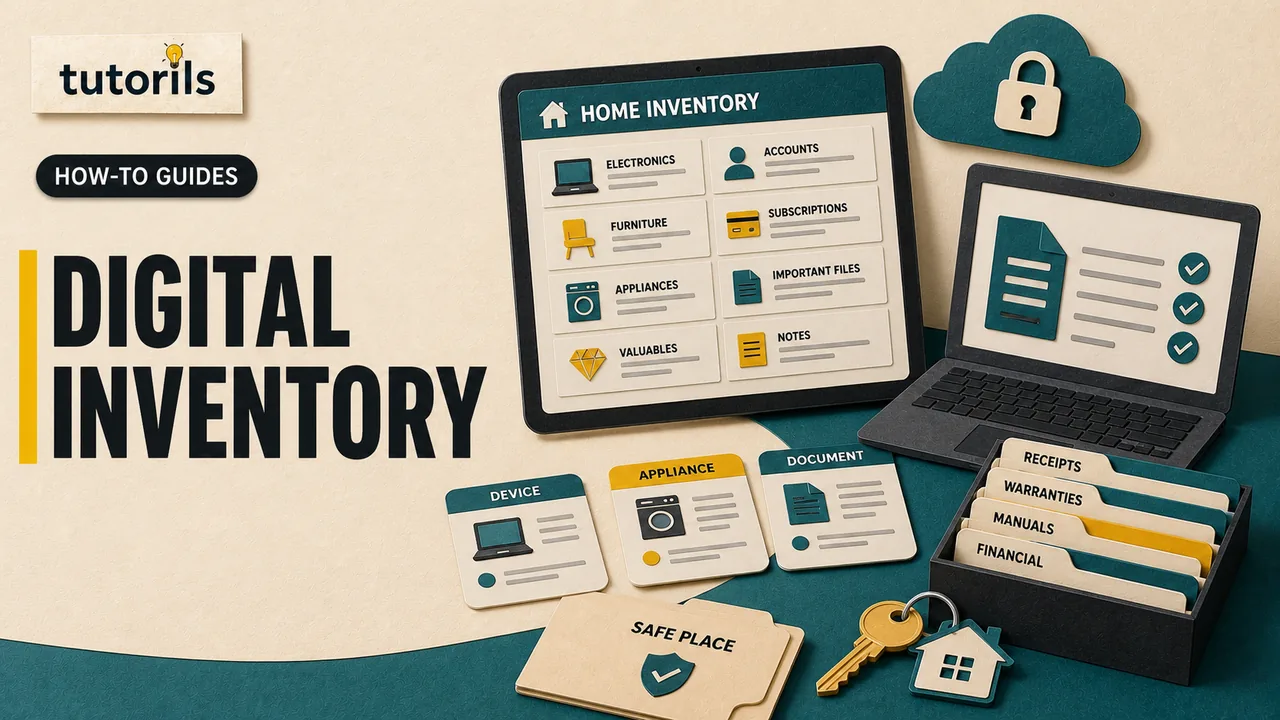
The inventory should not become a password list or a collection of identity documents. Record enough information to identify and manage each item, then store the inventory with access appropriate to the risk.
Define the purpose and owner
Decide who maintains the inventory and who may use it. A couple may share responsibility, while a larger household may name one primary maintainer and one backup person.
Write the purposes at the top:
- identify devices and their owners
- locate important digital files and backups
- review subscriptions and renewal dates
- find account recovery routes
- prepare for loss, theft, damage, or incapacity
Do not expand the list into surveillance of other household members. Adults should know what is recorded and agree to the access rules. Children and dependants need age-appropriate privacy.
Choose a simple inventory format
A spreadsheet works well because it supports rows, filters, and review dates. A table in an encrypted notes app can also work. A paper copy can serve as a limited emergency index, but it should not expose account details to anyone who opens a drawer.
NIST's Cybersecurity Framework 2.0 Resource and Overview Guide notes that an inventory of hardware, software, services, and systems can be as simple as a spreadsheet. The framework addresses organizations, but the basic idea adapts well to a household when the record stays proportional.
Use separate tabs or sections for devices, accounts, services, data locations, and recovery. Avoid one giant table with many blank columns.
Record devices without collecting too much
Create one row for each phone, tablet, laptop, desktop, smart watch, router, storage drive, e-reader, game console, camera, and important smart-home controller.
Useful fields include:
- household name for the device
- device type, maker, and model
- primary user
- purchase month or warranty reference
- operating system and update status
- serial number or asset identifier when needed
- backup method and last verified backup
- device encryption and screen-lock status
- location when normally stored
- status: active, spare, repair, sold, donated, or recycled
- last review date
Do not publish this inventory or store it in an open shared link. Serial numbers and ownership details can be sensitive.
Photographing purchase receipts can help with warranty or insurance claims, but keep those images in a protected records folder rather than embedding them in the spreadsheet.
Compare the list with account device pages
Device records maintained by major account providers can reveal old or unfamiliar sessions.
Apple's device-list guidance, published December 16, 2025, explains how to see devices signed in to an Apple Account and review details such as model and trusted-device status. It also explains that removing an account device can affect iCloud, Find My, and verification-code access.
Google's account device guidance explains how to review devices and sessions with recent account access. A session is not always a separate physical device, so investigate before deleting entries.
Compare these official lists with the household inventory. If you see an unfamiliar device or activity, follow the provider's account-security process. Do not record authentication cookies, recovery codes, or live sessions in the inventory.
Build an account index, not a password sheet
List accounts that would be difficult to recover or that control other services:
- primary email accounts
- Apple, Google, or Microsoft accounts
- mobile and internet providers
- cloud storage
- domain or website accounts
- financial and payment services
- household utilities
- school or work portals managed personally
- insurance and government service accounts
Record the service name, responsible person, sign-in email or username when appropriate, official recovery URL, two-factor method category, and last review date.
Do not put passwords, full recovery codes, PINs, security answers, card numbers, or identity-document images in the inventory. Use a trusted password manager for secrets. The inventory can say "stored in household password manager" without copying the secret.
If a recovery method depends on an old phone number or email address, update it through the official account settings. Never change another adult's recovery information without their knowledge.
Map where important data lives
Create a data-location section for items such as:
- family photographs and videos
- tax and financial records
- education documents
- insurance policies
- property and vehicle records
- health files kept personally
- creative work and business records
- device backups
For each group, record the primary location, backup location, owner, access method category, retention rule, and last recovery test. Do not copy the actual document into the inventory.
Tutorils' guide to organizing cloud storage can help you separate active work, shared folders, archives, and temporary uploads. Use a consistent file naming system so another authorized person can locate records without guessing.
Record backups and test recovery
A row marked "cloud backup" is not enough. Record which service or drive protects each device or data group, whether the backup is automatic, when it last completed, and when someone last restored a test file.
Tutorils' cloud backup setup guide explains how to check coverage across phones and computers. Review free-tier limits and current provider terms instead of assuming every folder is included.
Keep one backup separate from the main device or account when the data justifies it. A synchronized deletion can remove files across connected devices. A recovery test proves more than a green status icon.
Do not attach backup encryption keys or recovery codes directly to an unencrypted inventory. Document where an authorized person can obtain them under the household's emergency plan.
Add subscriptions and recurring services
List digital subscriptions, app stores, cloud plans, security software, streaming services, online learning, domains, and software licenses that affect household spending or access.
Useful fields include:
- service name
- plan name
- account owner
- billing route, without full card details
- renewal month or frequency
- current price checked date
- cancellation route
- household users
- last value review
Prices and terms change. Label the checked date rather than presenting the amount as permanent. Review duplicates, unused trials, and services tied to an old email address.
Do not click cancellation links from unexpected renewal messages. Open the official app or type the provider address yourself. Tutorils' guide to protecting yourself from online payment scams covers fake support, refund, and payment requests.
Include routers and connected-home devices
Record the router model, internet provider, administrator responsible, firmware-review date, and where setup documentation is stored. Do not write the Wi-Fi or router password in a shared spreadsheet.
List security cameras, doorbells, smart speakers, hubs, thermostats, appliances, and other connected devices that affect privacy or household operation. Record the controlling account, update status, location, and what happens when the service ends.
When selling or recycling a device, follow the manufacturer's official sign-out and erase steps. Change its inventory status only after removal from relevant accounts and a documented handover.
Classify the inventory by sensitivity
Not every row carries the same risk. Use labels such as:
- ordinary: device nickname and model
- private: account username or subscription details
- restricted: serial numbers, recovery locations, insurance references
Keep restricted details in a protected section or separate record. Give family members only the access they need.
Avoid recording exact daily schedules, alarm codes, complete financial identifiers, private health details, or scans of identity documents. The inventory should point to protected records, not duplicate them.
Store the inventory safely
Choose a location that balances availability and confidentiality. Options include an encrypted file in a controlled cloud folder, a trusted encrypted notes system, or a local encrypted file with a protected backup.
Do not use a public-link setting. Review sharing permissions and remove old collaborators. Enable account protections supported by the provider.
Keep a limited emergency access note that tells an authorized person where the inventory is and whom to contact. Separate the instructions from the credentials needed to unlock restricted material when appropriate.
If printing a recovery index, omit sensitive fields and store it securely. Update or destroy outdated copies.
Run the first household review
Walk through rooms with the inventory open. Check drawers for old phones, storage drives, cameras, and routers. Review app-store subscriptions and account device lists. Compare cloud folders and backup settings.
For each unknown item, assign an owner and status. Do not erase or disconnect it until you know what data, authentication, or home function depends on it.
Ask these questions:
- Which device would cause the biggest disruption if it failed today?
- Which account controls recovery for several other accounts?
- Which important files have no tested backup?
- Which service renews without a clear owner?
- Which old device still has account access?
- Who can help if the usual maintainer is unavailable?
Turn the answers into a short action list instead of filling the inventory with warnings.
Set a maintenance routine
Review the inventory every few months and after a purchase, sale, repair, account change, major password reset, new subscription, household move, or device loss.
Add a last reviewed field to every section. Archive retired items rather than deleting their history immediately when warranty, insurance, or data-erasure evidence matters.
Use a change log for high-impact actions such as replacing the router, moving backups, changing the primary recovery email, or transferring account ownership. Keep the log factual and avoid writing secrets into it.
Use the inventory during a loss or failure
If a phone is lost, the inventory should identify the model, owner, account, backup status, official find-device route, mobile provider, and insurance reference. It should not expose the account password.
If a laptop fails, check the recorded backup and recovery test before attempting destructive repair. If a household member cannot manage accounts, follow prearranged legal and provider processes rather than impersonating them.
During a suspected account compromise, preserve evidence and follow official recovery steps. An inventory helps identify connected services, but it does not replace the provider's security process.
Plan for household changes
Moving home, changing an internet provider, separating finances, or helping an older relative can alter account ownership quickly. Review the inventory before the change and assign each transfer explicitly.
Record who will return rented equipment, move a subscription, export shared photographs, or update a recovery address. Do not transfer another person's account informally when the provider offers an ownership, family, legacy-contact, or authorized-access process.
When someone leaves the household, remove access only from shared resources the household controls. Preserve that person's private files and accounts. For a deceased or incapacitated person, follow applicable legal documents and each provider's official process rather than guessing credentials.
After the transition, review shared links, trusted devices, billing routes, recovery contacts, smart-home access, and backup ownership. A dated checklist prevents an old device or account from remaining active unnoticed.
A compact starter table
Start with these columns:
Item | Type | Owner | Account or location | Backup | Recovery route | Status | Last reviewed | Notes
After the first pass, split the table if account and device details need different access. Simplicity matters, but so does limiting who can see sensitive fields.
A useful household digital inventory answers what exists, who owns it, where important data lives, how it is protected, and what to do when something fails. It remains useful because the household reviews it, protects it, and keeps secrets somewhere designed for secrets.
Reader answers
Frequently asked questions
Open a question to read the answer. Opening another answer closes the previous one.
What is a household digital inventory?
It is a private index of household devices, important accounts, subscriptions, data locations, backups, owners, and recovery routes. It should not contain passwords or full recovery codes.
What devices should I include?
Include phones, computers, tablets, routers, storage drives, cameras, consoles, smart watches, and important connected-home devices. Record active, spare, repair, sold, and recycled status.
Should I put passwords in the inventory?
No. Store secrets in a trusted password manager. The inventory can record the service, account owner, sign-in identifier, recovery route, and where authorized credentials are managed.
Where should I store a digital inventory?
Use an encrypted file, trusted protected notes system, or controlled cloud folder with appropriate access. Avoid public links, open family folders, and unprotected email attachments.
What account information is safe to record?
Record service name, owner, sign-in email when appropriate, official recovery URL, two-factor method category, and review date. Avoid passwords, PINs, codes, card numbers, and security answers.
How often should I update the inventory?
Review it every few months and after purchases, sales, repairs, moves, account changes, subscription changes, device loss, or major recovery updates.
How can an inventory help after a phone is lost?
It can identify the model, owner, provider, account, backup status, official find-device route, warranty or insurance reference, and connected services that need review.
Should subscriptions be included?
Yes. Record plan, owner, billing route without full card details, renewal frequency, price checked date, cancellation route, users, and last value review.
How do I inventory household cloud storage?
List each important data group, its primary and backup locations, owner, access-method category, retention rule, last backup, and last successful recovery test.
Can the whole family access the same inventory?
Give each person only the access needed and obtain consent. Separate restricted fields when necessary, and provide a limited emergency route for an authorized backup person.