Covering a name with a black rectangle does not remove it from a PDF. The text may still be searchable, selectable, copied, revealed by moving an annotation, or recovered from hidden document data. Cropping a page can leave the discarded content in the file as well.
How to Remove Personal Information from a PDF
Remove visible and hidden personal data from a PDF with real redaction, sanitization, independent checks, and a safer sharing process.
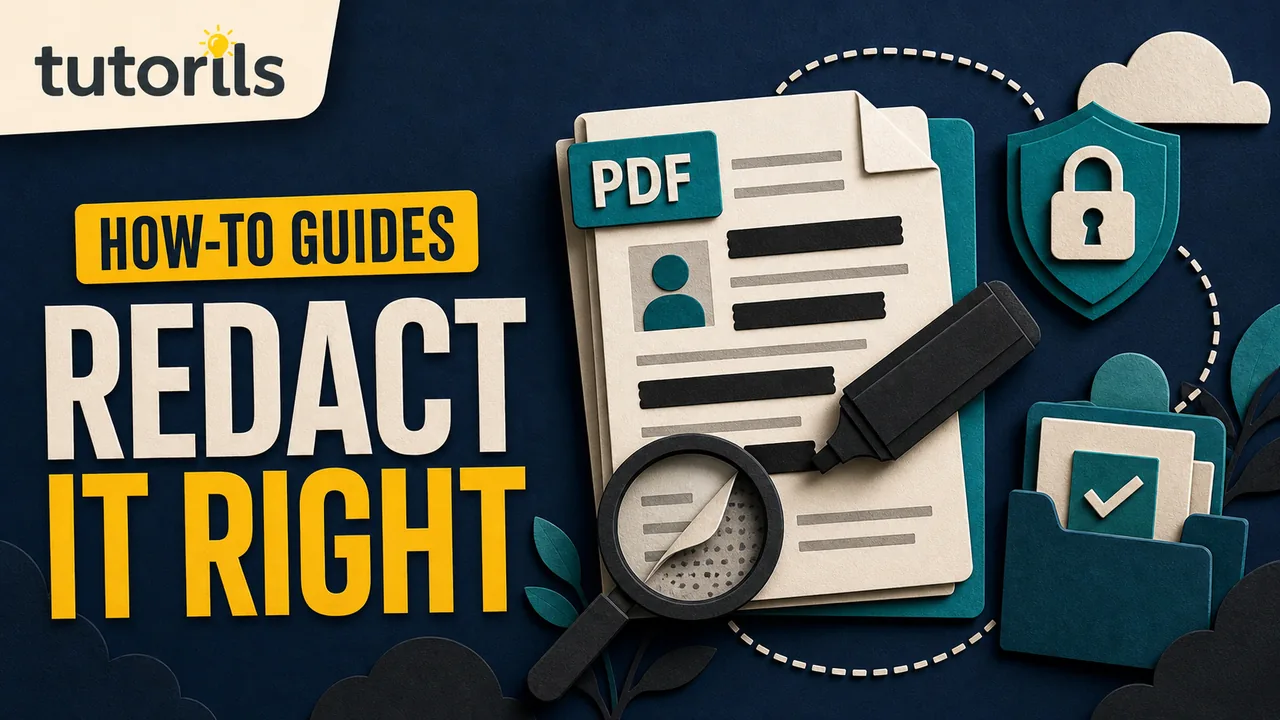
Safe removal needs two different actions. Redaction removes visible text and images. Sanitization or hidden-information removal addresses metadata, comments, attachments, hidden layers, scripts, and other material that may not appear on the page. Work on a copy, apply the changes permanently, and test the exact file you intend to share.
Decide what must be removed and what must remain
Make a written removal list before opening a tool. It might include a home address, telephone number, email address, signature, account number, identification number, photograph, barcode, QR code, handwritten note, or another person's details.
Also identify information that must stay. Removing a label but leaving its value can make the document confusing. Removing part of a sentence can change its meaning. A form submitted to a government office, employer, bank, court, insurer, or school may have rules about permitted edits. Ask the recipient when in doubt.
Use data minimisation as a practical principle: share only what the purpose requires. That does not mean deleting information from an authoritative record without permission. It means choosing the appropriate document or properly redacted copy for the specific recipient.
The UK Information Commissioner's Office data minimisation guidance describes personal data as adequate, relevant, and limited to what is necessary in the context it covers. Local law and organizational requirements can differ, so use the rule that applies to your situation.
Preserve the source and create a working copy
Do not redact the only copy. Keep the original in a protected location and make a working duplicate. Use a clear name such as:
application-redaction-working-copy.pdf
Plan a separate final name such as:
application-shared-redacted-2026-08-29.pdf
Avoid putting the removed personal detail into the filename. Tutorils' guide to creating a consistent file naming system offers a structure that keeps versions understandable.
If the document has an existing digital signature, certification, or official seal, redaction may invalidate its status. Obtain an approved redacted copy from the issuer when authenticity matters. Do not present an altered file as an untouched original.
Understand what is inside the PDF
A PDF may contain more than the visible page:
- live text behind the displayed layout
- scanned page images
- optical character recognition text behind a scan
- comments, highlights, sticky notes, and drawing annotations
- filled form values and hidden fields
- document properties and author metadata
- attachments and embedded files
- hidden layers or optional content
- links, actions, scripts, and multimedia
- bookmarks that repeat sensitive headings
- thumbnails or alternate representations
Redaction must account for the relevant layers. A visual inspection alone cannot prove that all personal information is gone.
Determine whether the page is live text or an image. Try selecting a sentence and searching for a known word. A scanned page may still have invisible OCR text, so a name can remain searchable even after a visible part of the image is covered.
Do not use these false redaction methods
A black rectangle, white rectangle, highlight, shape, or comment is an overlay. The original content can remain underneath. Another user may move or delete the overlay, copy the underlying text, or extract it with software.
Changing text color to match the background is not removal. Blurring or pixelating can also be risky, especially for short text, barcodes, faces, and repeated patterns. Cropping changes the visible page boundary but may preserve objects outside that boundary.
Taking a screenshot of the page and rebuilding a PDF can discard some hidden information, but it also removes searchable text, accessibility structure, links, and often quality. It may leave visible clues or create a misleading replacement. Use a real redaction tool and verify the result.
Redact visible text and images in Acrobat Pro
Adobe's current redaction instructions, last updated December 5, 2025, describe selecting Redact a PDF, marking text or images, applying the redactions, optionally sanitizing hidden information, and saving the sanitized document.
The practical process is:
- Open the working copy in Acrobat Pro.
- Choose the redaction tool.
- Mark every visible text and image region on your removal list.
- Review the marks before applying them.
- Apply the redactions.
- Choose hidden-information removal when appropriate.
- Save to a new final-candidate filename.
- Close the file and verify it independently.
Marking content is not the final step. Adobe explains that applied redaction is permanent after the document is saved. Until you apply and save, the marks can be only proposed redactions.
Zoom in around each region. Include punctuation, labels, adjacent parts of signatures, complete QR codes, and all portions of an image that carry the personal information. Check repeated headers, footers, sidebars, and attachments.
If replacement text such as "Personal information removed" is needed, keep it short and truthful. Do not use overlay text that exposes the reason for removal when that reason itself is sensitive.
Search for repeated text before applying
Long documents may repeat a name, account number, email address, or case identifier. Adobe provides a search and redact workflow for locating text patterns and marking results.
Search separately for:
- full name and name variants
- email address and username
- telephone number with different spacing
- account or reference number
- street name, postcode, or city combination
- identification number with and without separators
Review every match. Do not select all results blindly. A short number or common surname can appear in unrelated content. Search also fails when text is part of an image, has OCR errors, uses unusual encoding, or is split across lines.
After the text search, inspect every page visually. Search is an aid, not proof of complete removal.
Sanitize hidden information separately
Adobe distinguishes redaction from sanitization in its redacting and sanitizing overview. Redaction targets visible text and graphics. Sanitization targets hidden material such as metadata, embedded content, and scripts.
Adobe's sanitize PDF guidance lists metadata, comments, and hidden layers among the content that may need review. Current Acrobat options can remove all detected hidden information or let a user select categories.
Check each category before deciding what to remove. An attachment may be required evidence, while an old draft attachment may disclose everything you intended to redact. Comments can contain names or negotiation history. Metadata can reveal an author, organization, software path, or dates. Form fields may retain typed values even after the visible appearance changes.
Save a new file after sanitization and close the application. Verification must be performed on the saved result.
Handle scanned PDFs and OCR text
For a scan, the visible page is an image. A redaction tool must remove the image region, not merely place a shape above it. If OCR has been run, hidden text may exist behind the image and must be included in the redaction.
Check all pages at high zoom. Personal data may be faint handwriting, a seal, a photograph, a code, a margin note, or text visible through thin paper. Remove the complete sensitive region while preserving enough context for the document to remain understandable.
After applying the redaction, search for the removed term and try to select text around the area. Then run OCR only if the final document needs search and accessibility, and review the new OCR output. Running OCR after redaction can create text from anything still visually readable, so the visible removal must be complete first.
Review comments, forms, links, and attachments
Open the comments panel and inspect every annotation. Deleting the visible comment icon is not enough if the comment text remains in the document structure. Use the application's supported removal or sanitization function.
For forms, check field values, default values, calculations, tooltips, and hidden fields. Flattening is not a universal privacy solution and can harm accessibility. If the form was digitally signed, changes can invalidate it.
Review bookmarks and links. A bookmark may contain a full name even after the heading is redacted. A link can expose an email address or identifier in its destination. Open the attachments panel and remove any file that should not travel with the redacted copy.
Inspect document properties for title, author, subject, keywords, and custom fields. These details are easy to miss because they are not printed on the page.
Verify the result like an attacker and a reader
Use a repeatable test on the final candidate:
- Close and reopen it in a different trusted PDF viewer.
- Search for every item on the removal list.
- Select and copy text before, across, and after each redacted area.
- Paste copied text into a plain-text editor and inspect it.
- Zoom in on redaction boundaries.
- Review thumbnails, bookmarks, comments, forms, layers, and attachments.
- Inspect document properties and metadata.
- Confirm page count, order, and orientation.
- Check that the remaining content still conveys the intended meaning.
- Ask a second reviewer to repeat the search when the risk is high.
Do not try to remove or move the redaction box to see whether text appears. Use supported inspection and extraction methods on the completed copy. If the content can be searched, selected, copied, extracted, or revealed, the redaction is not complete.
Preserve accessibility and usefulness
Redaction can interrupt sentences, table relationships, reading order, and alternative text. A screen reader user needs to understand what remains and where content was intentionally removed.
Use concise replacement language when appropriate. Check headings, tags, reading order, form labels, and links after the redaction. If a complex table becomes unintelligible, create an approved accessible redacted version from the source document rather than patching the PDF repeatedly.
Keep the final file readable on a phone and at enlarged zoom. A privacy-safe document that nobody can interpret may fail its purpose.
Be cautious with online redaction tools
Uploading gives the service access to the file. A visible padlock in the browser shows that the connection is encrypted, not that the operator immediately deletes your document or never uses it for another purpose.
Before using a web tool, review its current privacy, retention, deletion, location, account, and training terms. Use an approved local tool for identity documents, financial records, health information, employment files, customer data, legal material, or any document covered by organizational policy.
For sensitive sharing decisions, use Tutorils' government document sharing guide. The checklist applies beyond government files because it focuses on the recipient, access, and minimum necessary disclosure.
Share the redacted copy safely
Confirm the recipient through a trusted channel. Attach the redacted copy, not the original or working file. Open the attachment from the outgoing draft once more to confirm you selected the correct version.
Do not send the password in the same message if an approved encrypted delivery method uses a separate secret. Remember that password protection does not repair failed redaction. The recipient can still view whatever remains in the file after opening it.
If the document belongs in a verified wallet or official repository, obtain the issuer-approved version rather than editing it casually. Tutorils' guide to using DigiLocker for driving licence and RC documents explains why issued documents differ from ordinary uploads.
Store the original and authorized redacted copy according to the owner's retention policy. A reliable cloud backup setup can protect necessary records, but avoid spreading extra copies across personal drives and messaging apps.
Common problems and safer responses
If the PDF prevents editing, ask the owner for an unlocked redaction copy or a properly redacted version. Do not bypass security restrictions.
If search finds nothing but the name is visible, it may be an image or badly encoded text. Use visual redaction and inspect OCR or image layers.
If the finished file becomes much larger, save a fresh copy through the redaction tool and use controlled optimization only after privacy checks. Recheck the file after any conversion.
If a signature becomes invalid, return to the original and ask the issuer for the correct workflow. Do not remove a warning or present the altered file as certified.
If you are unsure whether an identifier can be reconstructed from the remaining context, pause sharing and obtain a privacy, legal, or records review appropriate to the document.
Final redaction checklist
Confirm that you protected the original, worked from a written removal list, used permanent redaction for visible content, sanitized hidden information, inspected scans and OCR, reviewed metadata and attachments, tested the saved copy, preserved usability, and selected the right attachment.
Real PDF redaction is a process, not a black box. The reliable habit is to remove visible information with a purpose-built tool, remove hidden data separately, then challenge the final file through search, copy, metadata, and second-viewer tests before it leaves your control.
Reader answers
Frequently asked questions
Open a question to read the answer. Opening another answer closes the previous one.
Does a black box remove text from a PDF?
No. A shape can leave text searchable, selectable, copyable, or recoverable underneath. Use a purpose-built redaction tool, apply the redaction, save, and test the result.
What is the difference between redaction and sanitization?
Redaction removes visible text and graphics. Sanitization targets hidden material such as metadata, comments, embedded files, scripts, hidden layers, and other non-visible content.
Can I redact a PDF for free?
Some trusted tools offer limited redaction, but features vary. Verify that the tool permanently removes content and hidden data. Do not assume drawing or annotation tools perform redaction.
How do I verify that PDF text is truly removed?
Reopen the saved file in another viewer, search for removed terms, copy surrounding text into a plain-text editor, and inspect metadata, comments, forms, layers, bookmarks, and attachments.
Can cropping remove personal information from a PDF?
Cropping may only change what is visible and can leave discarded objects in the file. Use actual redaction and hidden-information removal, then verify the final saved copy.
How do I redact a scanned PDF?
Use a redaction tool that removes the sensitive image region and any OCR text behind it. Apply the change, save a new file, then search, copy, and inspect the result.
Does removing PDF metadata remove all personal data?
No. Metadata removal does not remove names, signatures, images, form values, comments, attachments, or OCR text on the pages. Review visible and hidden content separately.
Will redaction invalidate a digital signature?
Changing a signed or certified PDF can invalidate its signature status. Ask the issuer for an approved redacted copy when authenticity or certification must be preserved.
Are online PDF redaction tools safe?
Uploading gives the service access to the file. Review current privacy, retention, deletion, and processing terms. Use an approved local tool for confidential or regulated material.
Should I keep the original PDF after redaction?
Keep the protected original when policy or legitimate recordkeeping requires it. Share only the verified redacted copy, and avoid leaving unnecessary duplicates on email, messaging, or personal drives.