Turning photographs or scanned pages into one PDF is easy until the pages arrive out of sequence, sideways, blurry, duplicated, or missing. The reliable method starts before conversion. Put the source images in order, check their orientation and quality, then build the PDF from that controlled set.
How to Convert Images to PDF in the Correct Order
Turn photos or scans into one correctly ordered PDF while preserving readable pages, protecting originals, and checking the finished file before sharing.
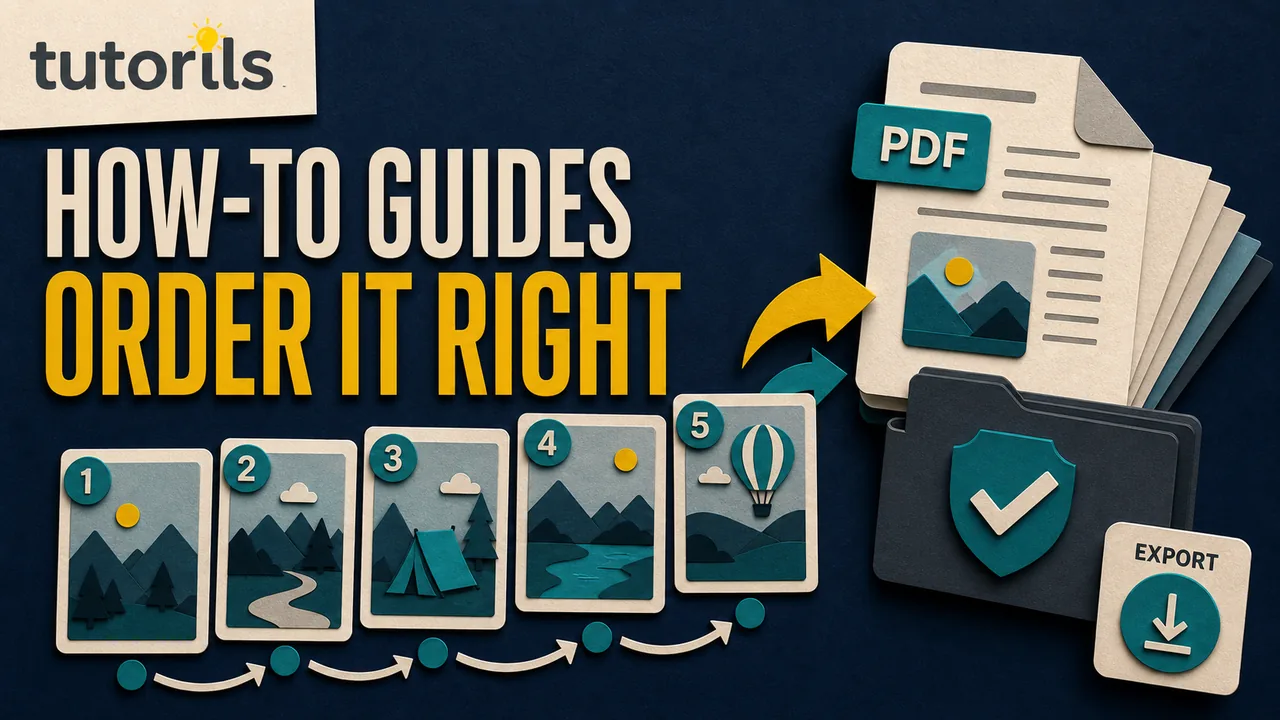
This guide works for receipts, forms, handwritten notes, application pages, study material, and ordinary household records. It also explains how to preserve the original images and verify the finished document before sharing it.
Decide what the PDF must contain
Write a page list before selecting files. A simple application might need:
- cover or instruction page
- completed form
- identity evidence
- address evidence
- supporting document
Do not assume the order in a camera folder matches the intended document. Phones can sort by capture date, modified date, filename, or cloud-sync time. Images received through a messaging app may have new timestamps.
Check the recipient's rules for file type, page size, maximum file size, color, and orientation. If an official portal asks for separate files, combining everything into one PDF can cause rejection. Use the requested structure.
Protect and organize the source images
Copy the relevant images into a new working folder. Keep the originals unchanged in their normal backup. Avoid editing the only copy of a receipt, signed form, or irreplaceable photograph.
Rename the working copies with leading numbers:
01-cover.jpg
02-form-page-1.jpg
03-form-page-2.jpg
04-address-proof.jpg
Use enough digits for the page count. Files numbered 01 through 12 sort more predictably than 1 through 12 because some tools place 10 immediately after 1. Tutorils' guide to creating a consistent file naming system explains a reusable approach.
Do not place personal identifiers in public filenames. A neutral description and sequence number are usually enough.
Check each image before conversion
Open every file and inspect it at normal size and higher zoom. Confirm that:
- all four edges of the document are present
- text is readable without guessing
- the page is upright
- shadows do not hide details
- glare does not cover signatures or seals
- no finger or object blocks the page
- the image shows the intended page only
- there are no duplicates
Retake a bad photograph instead of sharpening it aggressively. Software cannot reliably recreate missing letters under glare or motion blur.
If the images came from a phone, preserve full-quality copies during transfer. Tutorils' phone-to-laptop photo transfer guide covers cables, cloud transfer, and checks that prevent messaging-app compression.
For future captures, a document-scanning app can correct perspective and create cleaner pages. Compare privacy, export, and review controls in Tutorils' guide to document scanning apps for Android and iPhone.
Standardize rotation and page framing
Rotate source images before combining them. Do not rely on a viewer to interpret camera orientation metadata the same way on every device.
Crop only unwanted background, not the document edge, stamp, signature, page number, or handwritten note. Keep similar margins from page to page so the finished PDF does not jump visually.
Mixed portrait and landscape pages are acceptable when the source requires them. Rotate each page for comfortable reading rather than forcing every page into one orientation and shrinking important content.
If images have very different dimensions, decide whether to retain their natural page sizes or place them on a consistent page. A consistent page can look cleaner, but enlarging a small image can expose blur. Never stretch an image out of proportion.
Put the files in sequence before opening a PDF tool
Sort the working folder by filename and review it in a thumbnail view. Read the sequence aloud or compare it with the written page list.
Check both sides of double-sided documents. A blank reverse side may be intentionally omitted, but a faint endorsement, stamp, or note may matter. Confirm with the document owner before deleting anything.
If one page has several photographs, decide whether each photo needs its own PDF page or whether an approved contact sheet is suitable. Do not shrink important text to fit many images onto one page.
Keep the working folder closed to unrelated files. A screenshot, profile photo, or previous version can enter the PDF through a careless multi-select.
Combine images with Adobe Acrobat
Adobe's Combine files into one PDF instructions, updated January 20, 2026, explain that Acrobat can preview, arrange, move, and remove pages before creating a sequential PDF.
The practical process is:
- Open Acrobat and choose Combine files.
- Add only the numbered working images.
- Switch to a thumbnail view.
- Compare every thumbnail with the page list.
- Drag pages into the correct order if needed.
- Remove accidental duplicates or unrelated files.
- Choose the conversion quality for the intended use.
- Combine and save under a new PDF filename.
Adobe's rearrange and resize guidance, updated April 8, 2026, describes smaller, default, and larger file-size choices. Smaller settings can reduce image resolution and use lower-quality JPEG compression. Start with a quality that preserves the document, then reduce size only when a real delivery limit requires it.
Do not select an option that deletes source files. Keep the ordered working images until the final PDF passes review.
Combine pages in Preview on a Mac
Apple's Preview guide for combining PDFs warns that changes can save automatically and recommends duplicating originals first. Preview can open images, and you can create or combine PDF pages through its thumbnail view.
A controlled workflow is:
- Duplicate the source or work from prepared copies.
- Open the ordered images in Preview.
- Show the thumbnail sidebar.
- Confirm the pages follow the numbered filenames.
- Drag thumbnails to correct any order problem.
- Export or print the selection as a PDF under a new name.
- Close and reopen the saved PDF.
Preview interface labels can vary by macOS version. The important safeguards are the same: use copies, arrange thumbnails deliberately, and inspect the saved output.
Use Windows printing carefully
Windows can create a PDF through a print workflow in applications that support Microsoft Print to PDF. The selected image order may depend on the application, file selection, and print preview.
Select files from the numbered working folder, open the print preview, and inspect the page sequence before saving. Choose a layout that gives each document page enough room. Avoid picture layouts that crop edges or place several pages on one sheet unless that result is intentional.
Save to a new PDF and reopen it. If the print workflow ignores the filename order, create smaller groups, use a PDF organizer with thumbnails, or convert each image to an individual PDF page and combine those pages in a controlled tool.
Keep text readable and files manageable
Image-only PDFs can be large because each page is a photograph. Reduce file size after the page order and quality are correct, not before.
Use grayscale only when color carries no meaning. Stamps, highlights, signatures, charts, and photographs may need color. Black-and-white conversion can erase faint writing.
Do not repeatedly save JPEG images at lower quality. Each lossy conversion can add artifacts. Return to the best source images for a new attempt.
Optical character recognition can make scanned text searchable, but it must be reviewed. Names, numbers, tables, and handwriting can be misread. Keep the visible page image and compare important OCR text with it.
If the PDF exceeds a portal limit, reduce image dimensions or compression carefully and inspect the hardest page again. The smallest file is not useful if its content cannot be read.
Check privacy before using an online converter
An online converter receives every uploaded image. That can expose identity documents, receipts, addresses, signatures, account details, school records, or private notes.
Read the provider's current privacy, storage, deletion, training, and account terms. Use a trusted local application or organization-approved service for confidential material. A secure browser connection protects data in transit but does not define what the service does after upload.
For sensitive records, the recipient and sharing method matter as much as the PDF conversion. Tutorils' safe government-document sharing guide provides a useful recipient and minimum-disclosure checklist.
Verify the final PDF page by page
Close the creation tool and reopen the actual PDF you plan to send. Use this review:
- Confirm the filename and page count.
- Compare the order with the written page list.
- Check page numbers printed inside the source.
- Inspect rotation and cropping.
- Zoom into small text, signatures, dates, and seals.
- Look for duplicates and missing reverse sides.
- Confirm color information remains meaningful.
- Search and copy text if OCR was required.
- Open the file on a phone and a second computer.
- Confirm the final file size meets the real limit.
Scroll quickly through thumbnails, then read slowly from first page to last. The thumbnail pass catches visual jumps. The reading pass catches a page that looks similar but belongs in another position.
Ask another person to check high-stakes applications or records. The creator often remembers the intended order and overlooks what the file actually shows.
Store the source and delivery versions clearly
Keep the ordered image folder, the verified PDF, and any submission receipt according to the document owner's retention needs. Do not leave several ambiguous files called scan.pdf or new.pdf.
Record the creation date, source folder, page count, and reviewer when the document matters. Store sensitive material with appropriate access controls. Delete unnecessary temporary copies from Downloads, shared desktops, and messaging apps.
Preserve accessibility where possible
An image-only PDF does not automatically provide readable text, headings, document language, page labels, or a logical reading structure for assistive technology. If the PDF will be published, used in education, or shared as an accessible record, create it from the original source document when that source exists.
When images are the only source, reviewed OCR can improve search and selection, but OCR alone does not create a fully accessible document. Check reading order, headings, alternative text for meaningful images, table structure, page labels, and document language with a tool suited to the intended standard.
Keep the page sequence logical for every reader. A visible page number inside a scan should agree with the PDF thumbnail order. If pages are intentionally omitted, explain that in the accompanying message rather than inserting an unexplained gap.
Do not flatten a properly tagged source PDF into page images just to combine it with one photograph. Add the photograph through a PDF organizer when possible and recheck the document's tags and reading order afterward.
Fix common ordering problems
If page 10 appears after page 1, rename all files with equal-width leading numbers. If the PDF tool reverses a multi-select, add files individually or reorder them in its thumbnail view.
If sideways pages return after saving, rotate the actual page in the PDF organizer rather than only changing the viewer display. Save a new copy and reopen it.
If a page is blurry, replace it from the best source. Do not enlarge the blurry page to match the others. If margins differ, adjust the page framing without removing content.
If the final PDF is too large, preserve the verified master and create a separate delivery copy. Check readability, OCR, links, and page order again after compression.
The correct order comes from a controlled source folder, numbered filenames, a written page list, and a final inspection. The conversion button is only one step. Preparing and verifying the pages is what makes the PDF dependable.
Reader answers
Frequently asked questions
Open a question to read the answer. Opening another answer closes the previous one.
How do I keep images in order when converting them to PDF?
Copy them into one folder, rename them with leading numbers such as 01, 02, and 03, sort by filename, then verify the thumbnail order before conversion.
Why does page 10 appear after page 1?
Some tools sort filenames as text. Use equal-width numbering such as 01 through 10, or 001 through 100, then add the files again.
Can I convert phone photos directly into one PDF?
Yes, but check each photo for blur, glare, cropping, rotation, and compression first. Transfer full-quality copies and arrange them in a controlled working folder.
How do I combine images into a PDF on a Mac?
Open prepared copies in Preview, show thumbnails, arrange them in order, then export or print a new PDF. Reopen the saved file to verify it.
How do I combine images into a PDF on Windows?
Use a trusted PDF tool or a print workflow with Microsoft Print to PDF. Inspect the print preview because selection order and picture layouts can vary.
Will converting images to PDF reduce their quality?
It can if the tool resizes or heavily compresses images. Start with the best sources, choose appropriate quality, and inspect small text and signatures after conversion.
Should I use OCR on an image-only PDF?
Use reviewed OCR when search or selection is needed. Check names, numbers, tables, and handwriting because OCR can misread them and does not create full accessibility.
How can I reduce the size of an image PDF?
Preserve a verified master, then create a delivery copy with controlled image dimensions or compression. Recheck page order, small text, color, and OCR afterward.
Are online image-to-PDF converters safe?
Uploading gives the service access to every image. Review current privacy and retention terms, and use an approved local tool for identity, financial, health, or confidential records.
What should I check before sending the PDF?
Check filename, page count, order, rotation, crop, duplicates, missing pages, readable details, OCR, phone display, and the recipient's actual file-size requirement.