AI meeting notes can spare you from typing every decision and action item, but convenience changes the privacy boundary of a meeting. Spoken words may become a transcript, a summary, a file in cloud storage, a calendar attachment, or a record that other people can download. A meeting that once disappeared when everyone left the call can now remain searchable for months.
How to Use AI Meeting Notes Without Leaking Private Data
Use AI meeting notes with clearer consent, limited capture, restricted sharing, human review, secure retention, and a plan for accidental disclosure.
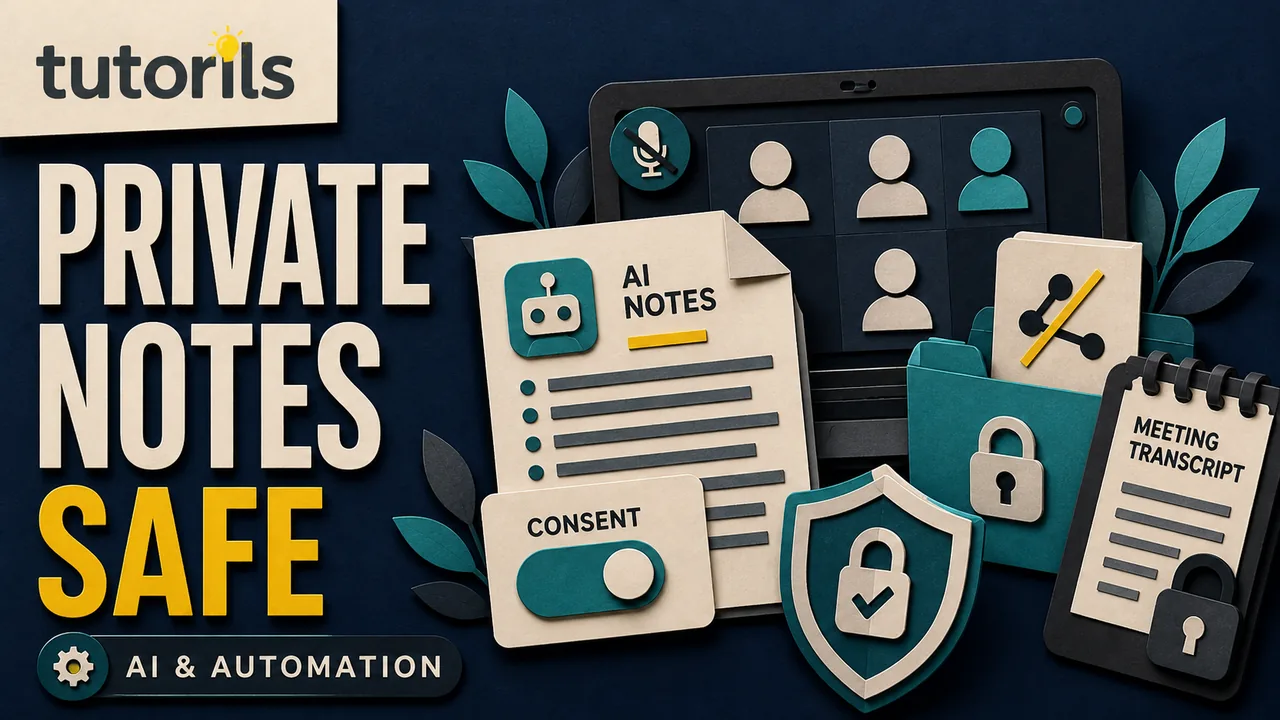
The safe question is not simply whether an AI note taker is accurate. You also need to know what it captures, who is told, where the output goes, who can open it, and how to remove it. Those answers vary by product, account type, organization policy, and meeting setup.
This guide gives hosts and participants a practical way to use AI meeting notes without casually exposing private data. It is about meeting content and note handling, not about granting an autonomous agent broad account permissions. If a tool wants access to email, files, calendars, or other connected services, use the separate Tutorils AI automation safety checklist before connecting it.
Understand what the tool actually creates
Recording, transcription, AI notes, and a meeting summary are related but different outputs.
- A recording can contain audio, video, and shared screens.
- A transcript turns speech into text, often with speaker names and timestamps.
- AI notes select and reorganize parts of the conversation.
- A summary condenses the meeting into topics, decisions, and next steps.
Some services need a transcript to generate notes. Others may create a temporary speech-to-text record or store the transcript beside the summary. A separate meeting assistant may join as a visible participant and transcribe the call. Do not assume that choosing "notes only" means no transcript is processed.
Before the meeting, open the product's current help page and account settings. Write down which outputs are created, where each one is stored, whether the transcript persists, and whether a recording is also enabled. Repeat this check after a major product or policy update.
Google's current Take notes for me documentation says generated notes are saved to the organizer's Google Drive and can be attached to the Calendar event. Microsoft explains that Teams meeting transcripts are stored in the organizer's OneDrive for Business and remain accessible through the meeting chat and Recap until deleted, subject to organizational policies. These examples show why storage and access deserve the same attention as capture.
Decide whether this meeting should be captured at all
AI notes are useful when several people need a reliable list of decisions, owners, and dates. They are a poor default when the conversation includes information that should not become a durable text record.
Pause before enabling the tool for meetings about health, legal advice, employee performance, hiring, discipline, credentials, security incidents, unpublished financial results, personal disputes, customer secrets, or confidential negotiations. Your organization may have an approved system and policy for some of these meetings. If it does not, keep the AI note taker off and use a short, manually reviewed outcome note instead.
Do not treat this list as legal advice. Consent, recording, employment, health, and privacy rules differ by location and context. For regulated or sensitive work, ask the responsible privacy, legal, human resources, or security owner which tool and process are approved.
A simple purpose statement helps. For example: "Capture project decisions, action owners, and due dates, but exclude customer credentials and personnel discussion." If the purpose cannot be stated clearly, the tool probably does not need to be on.
Tell people before capture starts
An on-screen icon is useful, but it should not be your only notice. Put a plain sentence in the invitation and repeat it before starting:
We plan to use an AI note-taking feature to create a summary and action list. The host will review it and share it only with the named project group. Please raise any concern before we start.
Give people a real way to object, leave, or request that a sensitive section be excluded. Do not surprise a participant by adding an outside note-taking bot after the discussion begins.
Product notices are not identical to explicit consent. Google Meet can notify everyone when notes are being taken, while an administrator may separately require participants to provide explicit consent. Microsoft Teams shows participants a notification when transcription starts and lets administrators configure agreement controls in some contexts. Zoom's documentation for an AI Companion in third-party meetings describes the assistant as a participant that transcribes the meeting and displays its owner and activity status.
Use the strongest process required by your policy and applicable rules. If you do not know the requirement, do not guess during a sensitive call.
Use the built-in feature before inviting an unknown bot
A meeting platform's built-in note feature can be easier to govern because the organizer, administrator, storage location, and sharing controls may already exist in the same workspace. A third-party bot adds another service, another account, and another data path.
That does not make every built-in feature automatically safe, or every bot unsafe. Compare them on concrete points:
| Check | What to confirm |
|---|---|
| Identity | The exact provider and account owner |
| Capture | Audio, transcript, screenshots, chat, files, or notes |
| Storage | The service and region where records are kept |
| Access | Host, invitees, attendees, workspace members, or vendor staff |
| Retention | Default period, policy controls, and deletion route |
| Model use | Whether customer content is used to improve models |
| Exit | How to disconnect the tool and remove stored records |
Be wary of a participant tile with a vague name such as "Meeting Notes" when nobody can identify its owner. Ask who invited it and what service it represents. Remove it if the host cannot verify it.
Minimize what enters the notes
The safest private detail is the one the tool never receives. Keep passwords, one-time codes, private keys, payment card details, identity numbers, recovery answers, and access links out of spoken discussion and screen sharing.
Use role labels rather than unnecessary personal detail. "The customer will confirm the address" is often enough. A summary rarely needs a person's health history, home address, or full account number to preserve the decision.
Share only the application window or document required for the discussion. Close private notifications, messaging apps, password managers, and unrelated browser tabs before screen sharing. If the note feature can include screenshots of presented content, review that option before presenting. Google's Meet help notes that screenshot-related settings may capture presentation-like resources when enabled.
Create a verbal stop phrase, such as "pause notes," and make sure the host knows the actual product control. Google Meet allows authorized participants to stop and restart notes, depending on host settings. Other tools may give that control only to the host. Test it before a confidential segment, not during one.
Restrict who receives the output
Default sharing can be wider than the attendance list. A calendar invitation may contain people who declined, group addresses, external guests, or people added for awareness. Notes shared with "all invited guests" may therefore reach more people than those who attended.
Choose the narrowest recipient setting that fits the purpose. For a mixed internal and external meeting, start with hosts or internal participants, review the notes, then send a separate approved summary to the external group.
Google Meet currently lets a host choose among all invited guests, invited guests in the organization, or hosts and co-hosts only. Its help page also warns that "invited guests" refers to people on the Calendar invitation, not only attendees. Microsoft Teams permissions differ by participant role and administrator settings. Read the current controls rather than relying on a label you remember from last year.
After generation, inspect the file's actual sharing panel. Check named people, groups, link access, external access, download rights, and inherited folder permissions. A calendar attachment being visible does not always mean the viewer can open the file, but it can reveal that a record exists.
Review the notes before anyone acts on them
AI meeting notes are drafts, not minutes approved by the room. Names, amounts, deadlines, negation, technical terms, and responsibility can be wrong. Background speech may be assigned to the wrong person. A summary can also omit disagreement and make an unresolved idea look like a decision.
Use a short review sequence:
- Confirm the meeting name, date, participants, and scope.
- Compare every decision with your own notes or the relevant section of the transcript.
- Verify action owners and due dates with the people named.
- Check numbers, account names, URLs, product names, and quoted policy language against the source.
- Restore important disagreement, conditions, and unanswered questions.
- Remove private details that are not needed for follow-up.
- Mark the summary as reviewed and record who reviewed it.
If the summary contains factual advice generated by the model, follow the Tutorils method for checking AI answers before using them. A confident sentence in a meeting recap is not evidence.
For high-impact decisions, send the relevant action to the owner for explicit confirmation. Do not let an AI-generated due date silently become a contractual or compliance commitment.
Set retention before the folder fills up
Meeting notes often accumulate because they are easy to create and rarely revisited. More stored transcripts mean more material that can be exposed by a mistaken share, compromised account, legal request, or departing team member.
The NIST Privacy Framework treats privacy risk as something that can arise throughout the data lifecycle. Its data processing guidance includes access, disclosure, alteration, deletion, audit records, testing, and data minimization. For meeting notes, that translates into a practical rule: keep the smallest useful record for a defined period, then delete it according to policy.
Choose retention by purpose. A weekly project action list may only be useful until the next review or project close. Formal board minutes, regulated records, and legal evidence need an approved retention schedule, not an improvised deletion date.
Identify every copy before deleting: the transcript, AI summary, recording, chat attachment, downloaded file, emailed copy, calendar attachment, and any automation that copied the notes elsewhere. Deleting the visible summary does not necessarily remove the transcript or recipient copies.
Secure the account that holds the notes
The meeting tool is only one part of the protection. The notes may live in Drive, OneDrive, a vendor portal, or an emailed link. Protect the organizer and administrator accounts with a unique password, multifactor authentication or a passkey where supported, and current recovery information.
Remove former team members promptly. Review third-party app connections and shared folders. Avoid public links. If a vendor lets you set link expiration or disable downloads, use those controls for sensitive summaries.
Do not paste a private transcript into a second consumer AI tool merely to rewrite it. That creates another copy and another provider relationship. Use the approved workspace feature or edit locally. If you are building a broader email, research, or reporting workflow, the Tutorils guide to using AI for email, research, and reports explains where review and data boundaries belong.
Handle mistakes and accidental capture quickly
If confidential information enters the transcript, stop note-taking as soon as the product allows. Tell the host and the appropriate privacy or security contact. Do not circulate the summary while you investigate.
Record what happened: meeting, time, captured information, tool, storage location, current recipients, and actions already taken. Remove access, delete permitted copies, revoke public links, and check whether an integration exported the content elsewhere. Follow your organization's incident process because deletion from one interface may not satisfy retention, notification, or legal obligations.
If an unknown bot joined, remove it, identify the inviter, inspect connected apps, and change credentials only if there is evidence they may be exposed. Preserve useful audit details before deleting logs. Panic-driven cleanup can destroy the record needed to understand the event.
Use a repeatable host checklist
Before the call:
- Confirm the meeting is appropriate for AI notes.
- Verify the feature, provider, account, and storage location.
- Choose the narrowest capture and recipient settings.
- Add a plain notice to the invitation.
- Close private windows and notifications.
- Know how to pause notes and remove an unexpected bot.
At the start:
- Tell everyone what will be created and shared.
- Confirm any required agreement or consent.
- Point out how participants can raise a concern.
- Start capture only after the group is ready.
After the call:
- Restrict access before editing.
- Verify decisions, owners, dates, and numbers.
- Remove unnecessary personal or confidential detail.
- Share the reviewed version with named recipients.
- Apply the correct retention date.
- Delete extra transcripts, recordings, or exports when policy permits.
Good meeting practice still matters. A clear agenda, named decision owner, and concise action list reduce how much AI cleanup is needed. The Tutorils guide to running a better video meeting can help you improve the call itself.
AI notes are most useful when they create a small, accurate record for a known group. Treat capture, sharing, review, and deletion as one workflow. The goal is not to preserve every spoken word. It is to keep the decisions people need without turning the rest of the conversation into an unnecessary privacy risk.
Reader answers
Frequently asked questions
Open a question to read the answer. Opening another answer closes the previous one.
Do I need permission to use AI meeting notes?
Requirements depend on your location, organization, and meeting context. Tell participants before capture, use any required agreement process, and ask the responsible legal or privacy owner when sensitive or regulated information is involved.
Are AI meeting notes the same as a recording?
No. A recording captures audio, video, or shared screens. AI notes usually rely on speech processing or a transcript and create a summary. Check whether the service stores a recording, transcript, summary, or all three.
Can an AI meeting assistant join a private meeting?
Only invite an approved assistant whose owner, provider, purpose, and data handling are understood. Remove any unknown bot. For confidential meetings, use the process and tool approved by your organization.
Who can access an AI meeting transcript?
Access depends on the platform, meeting roles, sharing settings, calendar guests, and administrator policy. Inspect the actual file permissions after generation instead of assuming attendance alone controls access.
How long should AI meeting notes be retained?
Keep them only as long as their purpose and your approved retention policy require. Identify the transcript, summary, recording, downloads, and emailed copies because deleting one file may not remove every record.
Can a vendor use meeting data to train AI models?
Policies differ by provider, product, plan, and administrator setting. Read the current terms and privacy documentation for the exact service. Do not infer enterprise protections from a consumer product with a similar name.
How do I check an AI meeting summary for errors?
Verify decisions, owners, dates, numbers, names, and conditions against the relevant transcript section or source. Ask each action owner to confirm important commitments before the summary becomes the team's record.
What information should stay out of AI meeting notes?
Avoid passwords, one-time codes, private keys, payment details, identity numbers, unnecessary health or personnel information, and confidential material outside the tool's approved purpose.
How do I delete or revoke access to AI meeting notes?
Remove broad sharing links, restrict recipients, and delete permitted copies from the notes service and its storage location. Check transcripts, recordings, downloads, chat attachments, calendar attachments, and connected automations separately.
What should I do if an AI bot joined without approval?
Ask the host to remove it, identify its owner and service, stop sensitive discussion, and document what it may have captured. Follow your organization's privacy or security incident process before deleting useful audit evidence.