Real software updates fix bugs, add features, and close security weaknesses. Fake update alerts borrow that urgency to make you install malware, pay for useless support, give someone remote access, or reveal a password.
How to Spot a Fake Software Update Alert
Spot fake software update alerts, verify updates through official settings, close scam pop-ups safely, inspect downloads, and respond if you clicked or installed.
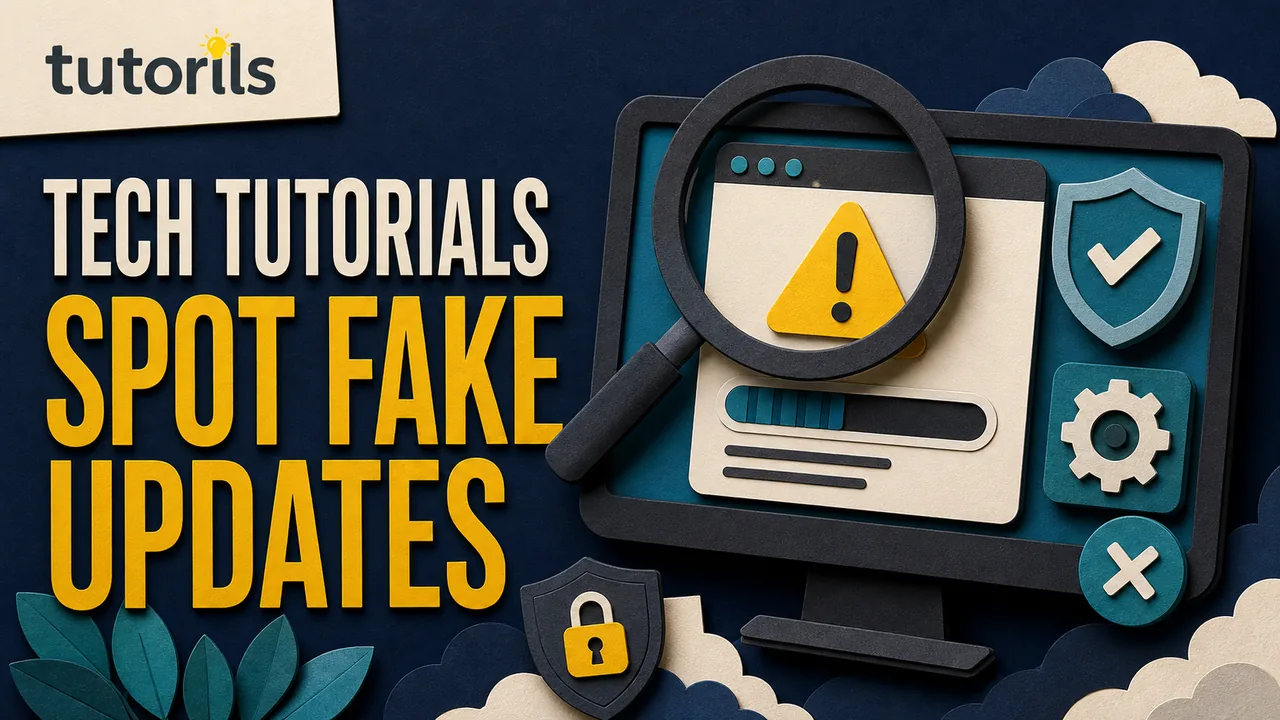
The safest response is not to ignore updates. It is to verify them inside the operating system, app, or official store instead of trusting a pop-up, advertisement, email, or phone call.
Recognize where the alert appeared
First identify the source:
- a web page inside a browser tab
- a browser notification from a website
- an operating-system notification
- a message inside the app that needs updating
- an email, text, or chat message
- a full-screen window that prevents normal browsing
- a phone call claiming an update or infection is urgent
A web page can imitate Windows, macOS, Android, iPhone, Chrome, or antivirus software. It may display your browser, city, internet provider, or device type, but websites can detect some of that information without scanning your computer.
Do not click the alert to investigate. Note which application surrounds it. If you can see the browser address bar and tabs, the message is likely web content rather than a system update panel.
Treat a phone number as a strong scam sign
The FTC's April 2025 warning about urgent security messages and tech support scams states that real security pop-up warnings from technology companies will not ask you to call a phone number.
Close the message. Do not call, start a chat, buy support, or install a remote-control app. A scammer may claim to be Microsoft, Apple, Google, your internet provider, or a familiar retailer.
If you need help, open the company's official support page yourself or use support built into the device. Do not use contact details supplied by the alert.
Watch for pressure and unusual payment requests
Fake update alerts often claim that files will be deleted, an account will be locked, a subscription has expired, or a device is spreading viruses. A countdown, loud alarm, flashing warning, or disabled-looking close button is designed to rush you.
Other warning signs include:
- payment by gift card, cryptocurrency, wire transfer, or payment app
- a request for a password or one-time code
- instructions to disable antivirus or browser protection
- a download with an unexpected name or file type
- poor spelling, mixed branding, or a mismatched web address
- a demand for remote access
- a claim that the caller can see infections on your device
Do not argue with the message. Leave the page and verify through the normal update route.
Verify Windows updates in Settings
On Windows 11, open Start, Settings, then Windows Update. Select Check for updates. Microsoft's current Install Windows Updates page documents this route.
For Microsoft Store apps, open the Store and use its Library or update area. For another desktop program, use its built-in Help, About, or Check for updates command, or visit the developer's official website by typing the address yourself.
Do not install a Windows update from a random advertisement or file-sharing site. Windows Update may show optional drivers, but hardware drivers can also come from the computer or component manufacturer's official support page.
Microsoft notes that free Windows 10 updates and security fixes ended on October 14, 2025 for ordinary support. A pop-up cannot turn an unsupported PC into a supported one. Use Microsoft's current lifecycle guidance and your device maker's compatibility information when planning an upgrade.
Verify Apple updates in device settings
On iPhone or iPad, open Settings, General, then Software Update. Apple's update guidance describes wireless updates through this panel and recommends backing up first.
On a Mac, choose the Apple menu, open System Settings, select General, then Software Update. Apple's Mac Software Update settings explain the normal location and automatic-update options.
App Store applications should update through the App Store unless the developer uses a documented updater. Safari updates arrive with macOS. A web page cannot legitimately scan an iPhone or Mac and demand payment to install an Apple security fix.
Verify Chrome updates inside Chrome
Chrome normally updates in the background. To check on a computer, open Chrome, select the menu, choose Help, then About Google Chrome. Google's current Chrome update instructions say the browser checks for updates on that page and may ask you to relaunch.
A website that says "Your Chrome is outdated" may be correct by coincidence, but its download button is not the verification route. Close it and use the About page. On mobile, use the official app store.
For browser extensions, open the browser's extension manager. Remove items you did not install or no longer use. Do not add an extension because a video page says it is required to update a player.
Close a fake alert without interacting
Try these steps in order:
- Do not click inside the warning.
- Close the browser tab with the tab's close control.
- If the page is full screen, use the browser or operating-system shortcut to leave full screen.
- Close the browser window.
- If the browser will not respond, use the operating system's task manager or force-quit control.
- Reopen the browser without restoring the suspicious tab.
Do not click a button labeled Cancel, Scan, Fix, Renew, or Close inside the page. The button can perform a different action from its label.
If the alert returns on browser launch, disconnect from the internet temporarily, close the restored tab, and change the browser setting that reopens the previous session. Clear site data and notification permission for the suspicious site.
Remove abusive browser notifications
A site may persuade you to click Allow on a notification prompt, then send update warnings even when you are browsing another page. This does not necessarily mean the device is infected.
Open browser settings, find Privacy and security, Site settings, or Notifications, then remove or block unfamiliar sites. Menu labels vary by browser and version, so use the browser maker's current help page.
Review recently installed extensions too. Remove an extension that appeared with the alerts, changed the search engine, or redirects pages without permission. Google's Chrome reset guidance explains which settings a reset changes and notes that an unwanted program may keep altering them.
Check a downloaded file before opening it
If the alert downloaded a file, do not run it. Note the name and location. On Windows, keep Microsoft Defender and reputation-based protection enabled. Microsoft's App and browser control guidance says SmartScreen can evaluate websites, apps, and downloads for phishing, malware, and potentially unwanted applications.
Delete an obviously unwanted installer, then empty it from the recycle location when appropriate. If the file may be evidence of a workplace incident, contact the security team before deletion.
Do not upload a confidential suspicious file to a public scanning service without permission. A file can contain private data even if it is malicious.
If you clicked but did not install
Close the page and inspect browser downloads. Delete the unwanted file without opening it. Review browser notification permissions and extensions. Run the built-in security scan with current definitions.
Change a password only if you entered it, reused it on the suspicious page, or have other evidence of compromise. Use a clean device if the computer behaves unpredictably. Turn on multifactor authentication or a passkey where supported.
Check account sessions and recent activity for the affected service. The Tutorils guide to checking whether your email was in a data breach can help with a wider account review, but a fake alert alone does not prove a breach.
If you installed the fake update
Disconnect the device from networks if you see suspicious activity, especially new remote control, account changes, encryption, or unknown transfers. Do not continue entering passwords.
On a personal Windows PC:
- Open Windows Security through the Start menu, not the alert.
- Update security intelligence if the device can be safely reconnected.
- Run an appropriate scan.
- Review Protection history and installed apps.
- Remove unauthorized remote-access tools.
Microsoft's Virus and threat protection guidance describes scans and protection updates. For a managed computer, stop and contact the organization's security or IT team. Their evidence and recovery procedure takes priority over a general cleanup guide.
On a phone, remove an unknown app only after noting its name and permissions. Review device administrator, accessibility, VPN, and profile settings if the app requested them. The Tutorils guide to finding and removing spyware apps covers that review without assuming every battery or performance problem is spyware.
If you gave someone remote access or paid
Disconnect the remote session and network. Contact the bank, card issuer, payment app, or transfer provider immediately using its official channel. Ask about stopping or disputing the transaction. Preserve receipts, chat messages, phone numbers, and the remote-access app name.
Change exposed passwords from a clean device, beginning with email and financial accounts. End unknown sessions and check recovery details. Tell contacts if the attacker may have used your account to message them.
Report US consumer scams at ReportFraud.ftc.gov. Other countries have their own cybercrime and consumer-protection reporting systems. Contact local emergency services if there is an immediate threat.
The Tutorils guide to protecting yourself from online payment scams explains payment-specific response steps.
Distinguish a fake alert from a real security warning
Real browser and operating-system warnings can block a dangerous page or file. Do not bypass a warning merely because fake alerts exist. Check where the warning appears and verify its wording through the product's official help.
A genuine Windows SmartScreen warning, for example, belongs to Windows or Edge protection and gives you a chance to cancel a suspicious download. A fake web page may imitate it. When uncertain, close the page, open Windows Security or browser settings directly, and check protection history.
Compare the alert with the product's normal behavior. A real updater usually identifies the installed product and lets you confirm the version inside its own settings. A suspicious page may list several unrelated brands, claim to scan the entire device instantly, or insist that only its download can prevent immediate damage.
Do not judge authenticity from a logo, padlock icon, notification sound, or professional design. Those elements are easy to copy. The reliable test is whether the update appears when you open the official update panel independently.
Build a safer update routine
CISA's Secure Our World campaign recommends prompt software updates because vendors use them to fix known weaknesses. Enable automatic updates for the operating system, browser, security software, and trusted apps when practical.
Once a month:
- check Windows Update or Apple Software Update directly
- update browsers through their own settings
- review app-store updates
- remove unused extensions and applications
- confirm security protection is active
- back up important files
This routine makes an unexpected pop-up less persuasive because you already know where updates come from.
If a device remains slow after a verified update, do not install a cleaner advertised by a warning page. Tutorils has a safer guide to speeding up a Windows laptop without resetting it.
The rule is straightforward: never install an update from an unexpected alert. Close it, open the product's official update panel, and check there. Real updates deserve prompt attention. Fake urgency deserves verification.
Reader answers
Frequently asked questions
Open a question to read the answer. Opening another answer closes the previous one.
How can I tell if a software update pop-up is fake?
A browser page that demands a call, payment, remote access, password, or urgent download is suspicious. Close it and check for the update inside the operating system, app, or official store.
Do real security warnings show phone numbers?
The FTC says real security pop-up warnings from technology companies will not ask you to call a phone number. Use the company's official support page if you need help.
Where should I check for Windows updates?
Open Start, Settings, then Windows Update and select Check for updates. For Store apps, use Microsoft Store. Use the software developer's official updater or website for other programs.
Where should I check for iPhone or Mac updates?
On iPhone, open Settings, General, Software Update. On Mac, open System Settings, General, Software Update. Verify app updates through the App Store or the developer's documented updater.
How do I verify a Google Chrome update?
Open Chrome, select the menu, then Help and About Google Chrome. Chrome checks for updates there and may ask you to relaunch. Do not use a website's update button.
What should I do if a fake update downloaded a file?
Do not open it. Note the name and location, scan with current built-in security, and delete it if appropriate. Workplace users should contact security before removing possible evidence.
What if I clicked the alert but installed nothing?
Close the page, inspect downloads, delete unwanted files without opening them, remove suspicious notification permissions or extensions, and run the built-in security scan with current definitions.
What if I installed a fake software update?
Disconnect if suspicious activity is occurring, stop entering passwords, run the official security tools, remove unauthorized remote-access software, and contact workplace IT or security on managed devices.
Should I disable automatic updates to avoid fake alerts?
No. Automatic updates from trusted operating systems, app stores, browsers, and approved software reduce exposure to known flaws. Verify the source rather than postponing legitimate updates.
Can a website scan my whole computer for viruses?
A web page can display device details and imitate a scan, but an urgent result is not proof of infection. Close it and check through the device's official security application.