A smaller PDF is easier to email, upload, archive, and open on a phone. The wrong compression setting can also blur small text, turn diagrams into blocks, remove searchable text, or damage the structure that screen readers use.
How to Compress a PDF Without Making It Unreadable
Reduce a PDF's file size without blurring small text, breaking search, damaging links, or losing accessibility. Compare, test, and keep the original safe.
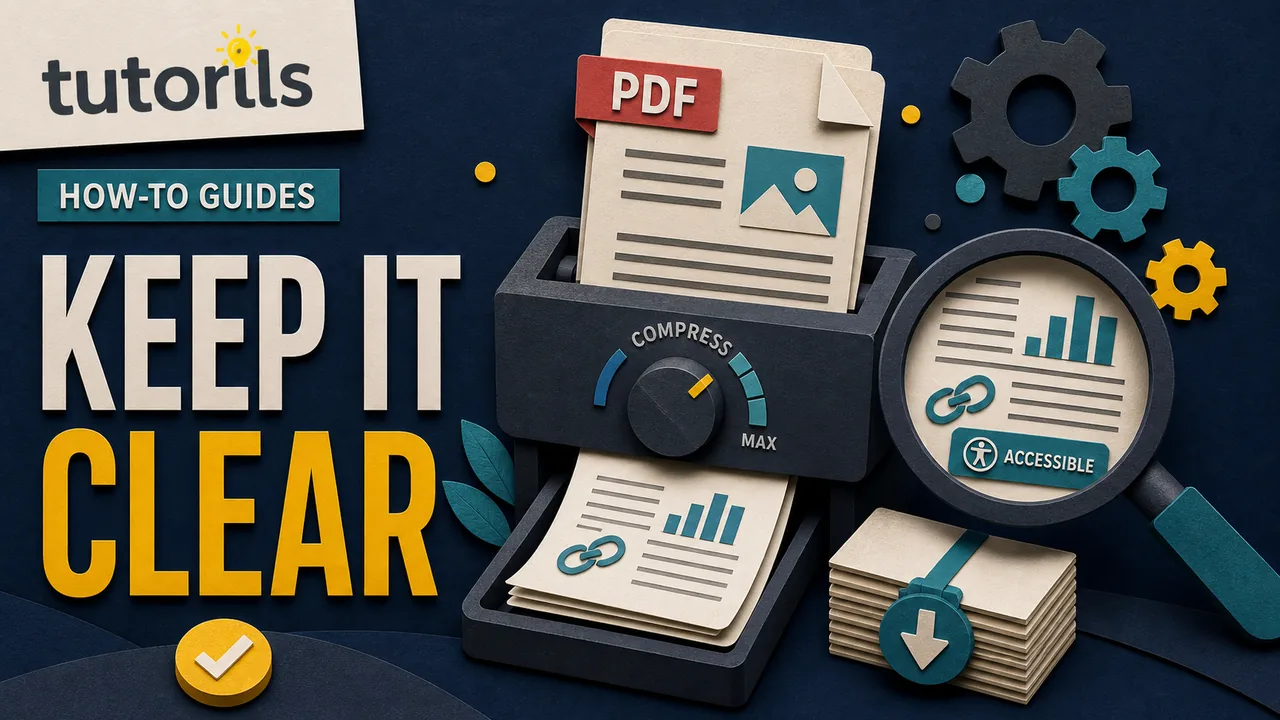
The safest method starts with a copy of the original. Decide how the file will be used, identify what makes it large, reduce the heaviest elements first, then inspect the result at normal reading size. The smallest possible file is rarely the best file. The target is the smallest version that still serves its reader.
This guide covers text documents, presentation exports, image-heavy reports, and scanned PDFs. It also explains when to return to the source document instead of repeatedly compressing an already degraded file.
Decide what the compressed PDF must do
Write down the delivery requirement before changing any settings. Common examples include:
- fit under an email attachment limit
- upload to a form with a stated maximum size
- load quickly from a public web page
- remain sharp enough for office printing
- preserve selectable text and links
- keep forms, bookmarks, tags, and reading order
- archive a legally or operationally important document
These goals lead to different choices. A screen-only handout can often use lower image resolution than a print brochure. A signed agreement, accessible report, technical drawing, or identity document may need stricter preservation and a different sharing method.
Do not compress a file merely because a tool shows a large reduction button. Check the actual limit. If a portal accepts 10 MB and the document is 7 MB, compression may add risk without solving a problem.
Protect the original first
Make a copy and give the working file a clear name, such as:
annual-report-2026-compression-copy.pdf
Keep the original in a separate folder or trusted backup. Do not choose an overwrite option until the compressed version has passed every check.
The Tutorils guide to creating a consistent file naming system can help teams distinguish source, review, and delivery versions. A useful filename records the document, version, and purpose without including sensitive personal details.
If the PDF was exported from a word processor, presentation, layout file, or design tool, preserve that editable source too. It is usually better to adjust images and export settings there than to compress the PDF several times.
For important files, keep a second copy using the approach in the Tutorils guide to free cloud backup for phone and laptop files. A backup should not depend on the same folder or device as the working copy.
Find out what makes the file large
A PDF is a container. Its size may come from photographs, scanned pages, embedded fonts, repeated graphics, attachments, comments, form data, or content left behind during editing.
Start with a practical inspection:
- Note the current file size and page count.
- Open several pages at 100 percent zoom.
- Try selecting a sentence.
- Search for a word that appears on the page.
- Check whether the document contains high-resolution photos or full-page scans.
- Look for forms, signatures, bookmarks, links, comments, layers, or attachments.
- Record which features must survive.
If text cannot be selected or searched, the PDF may contain page images rather than text. Compressing those images can reduce size, but aggressive settings may make the words hard to read. Optical character recognition, known as OCR, can add searchable text, though its output must be reviewed for mistakes.
Adobe's official PDF Optimizer settings explain that downsampling lowers image resolution by combining pixels, while compression reduces image data. Adobe also notes that lossy image optimization permanently removes some pixel data.
Set a readable quality target
Choose pages that represent the hardest content in the file:
- the smallest body text
- a page with a detailed chart
- a photograph with captions
- a scanned signature or stamp
- a light gray table
- a page with footnotes
- a form field or link
These become the test set. You do not need to inspect every paragraph after each trial, but you must inspect the content most likely to fail.
Judge the file at the size people will actually use. A label that looks acceptable at 300 percent zoom may be unreadable on a phone or on paper. Check 100 percent zoom, a narrow phone view, and one printed page when print matters.
Do not use a single resolution number as a universal rule. Legibility depends on original quality, font size, line weight, color, compression method, and output size. Compare the result with the original instead of assuming one preset will fit every document.
Compress from the source when possible
If you own the editable document, optimize it before export:
- Crop images to the area actually used.
- Resize oversized images near their intended display dimensions.
- Replace screenshots pasted at full device resolution with clean, focused captures.
- Remove hidden slides, unused layers, and duplicate assets.
- Use vector artwork for simple diagrams and logos when the source tool supports it.
- Export one fresh PDF using settings intended for screen or print delivery.
This produces a cleaner result than exporting a huge file and forcing a compressor to guess which details matter.
Do not turn normal document text into an image to save space. Real text stays sharp while zooming, supports search and selection, and can participate in an accessible reading order.
If photographs are the main source of size, reduce their pixel dimensions and use an appropriate image format before export. Keep line art, diagrams, and screenshots clear because heavy photographic compression can create ringing and blurred edges around text.
Use Acrobat's reduced-size option for a first pass
Adobe's Reduce PDF file size instructions, last updated September 23, 2025, direct Acrobat users to Save as Other and Reduced size PDF on Windows or macOS. The compatibility setting can affect which PDF features remain available in older viewers.
Use this simple method when you need a sensible first attempt and do not need to tune individual image or font settings:
- Open the copy in Acrobat.
- Choose the reduced-size or compression command.
- Select compatibility suitable for your intended readers.
- Save to a new filename.
- Compare the new size with the original.
- Run the readability and feature checks in this guide.
Do not apply compression to many files at once until one representative file has passed. A setting that works for a text report may ruin a scanned form.
Use PDF Optimizer when the first pass is not enough
Advanced optimization is useful when you need to see which parts consume space or adjust image handling separately.
Begin with a space-usage audit if your software provides one. It can show whether images, fonts, forms, or other objects are responsible for most of the file. Work on the largest safe target instead of selecting every removal option.
For images, make small changes and save a new trial each time. Downsampling is often effective for oversized photographs, but avoid pushing detailed charts and screenshots through the same aggressive setting. Color, grayscale, and monochrome images may need different treatment.
For fonts, be cautious about removing embedded data. A font that is available on your computer may not exist on the reader's device. Substitution can alter spacing, symbols, and line breaks. If brand typography matters, test on a device that does not have the source fonts installed.
Avoid removing bookmarks, tags, alternate text, form fields, links, metadata, attachments, or layers unless you understand their purpose and have decided they are unnecessary. Some items add little size but matter greatly to readers.
Compress a PDF in Preview on a Mac
Apple's official Preview instructions for reducing PDF size warn that the compressed PDF may be lower quality and that results vary with the selected options.
For the automatic method:
- Open a copy of the PDF in Preview.
- Choose File, then Export.
- Choose Reduce File Size from the Quartz Filter menu.
- Save under a new name.
- Open the new file and inspect the difficult pages.
Current Preview guidance also lists options for a linearized PDF, screen-optimized images, and JPEG image conversion. Each option changes a different part of the result. Test them one at a time so you know which choice caused a quality problem.
Preview's automatic filter can be too strong for small text in scans. If that happens, keep the original and use a tool with more control, or return to the source document.
Handle scanned PDFs differently
A scan is usually a collection of page images. Its size depends on page dimensions, resolution, color mode, background noise, and compression.
Start with the best available scan rather than a photo sent through several messaging apps. The Tutorils guide to document-scanning apps for Android and iPhone explains capture, cropping, lighting, and review considerations.
For a clean black-text document, grayscale may preserve more useful detail than full color while using less space. True black and white can be smaller again, but it may erase faint handwriting, stamps, shaded tables, or pencil marks. Keep color when color carries meaning.
Adobe's scanned PDF settings, last updated December 5, 2025, describe image optimization, deskewing, background removal, text sharpening, and OCR. These controls can improve a scan, but the right balance depends on the document.
Run OCR after cleaning the page when searchable text is needed. Set the correct language and review names, numbers, tables, headings, and legal terms. OCR confidence is not a substitute for comparing the result with the page image.
Preserve accessibility
Compression should not turn a structured document into page pictures or break its reading order.
An accessible PDF may include searchable text, headings, tags, language information, alternative text, table structure, bookmarks, logical reading order, and form labels. Some of those features require manual checking after optimization.
Adobe's PDF accessibility guidance, last updated February 26, 2026, explains that its checker can flag image-only pages, missing tags, reading-order issues, forms, tables, and images. Adobe also states that some results need manual review.
After compression:
- select and copy text from several pages
- navigate headings or bookmarks when they exist
- check that links still work
- test reading order on a multi-column page
- confirm images retain useful alternative text
- inspect form labels and keyboard order
- run the accessibility checker again
If accessibility is important and the compressed copy fails, do not publish it merely because it meets a file-size limit. Fix the source or choose a sharing method that accepts the accessible original.
Be careful with online compressors
An online compressor receives the file. That may be convenient for a public brochure and inappropriate for a tax record, contract, identity document, medical file, employee record, unpublished report, or customer data.
Before uploading, read the service's current privacy and retention terms. Check where the file is processed, how long copies are kept, who can access them, whether files train automated systems, and how deletion works. Do not rely only on a lock icon or a sentence beside the upload button.
Use an approved local tool for confidential material. If a workplace controls software and storage, follow its policy rather than choosing a public web service yourself.
When a sensitive document must be shared, compression is only one part of the task. Follow the access and recipient checks in the Tutorils guide to sharing government documents safely.
Avoid common failed shortcuts
Printing a PDF to a new PDF can sometimes reduce size, but it may flatten forms, remove links, discard bookmarks, change page boxes, or damage tags and reading order. Use it only when you have tested every feature you need and the file is not an authoritative signed original.
Taking screenshots of every page replaces text with pixels. It removes search and selection, often increases page count, and makes accessibility harder. It is not a sound compression method.
Repeatedly compressing the compressed output compounds quality loss. Always return to the original for a new attempt.
Changing the filename extension does not change the file. Zipping an already compressed PDF may produce little reduction. Password protection can be appropriate for access control, but it is not a compression method and may affect some workflows.
Deleting pages without permission is not optimization. Confirm that blank pages are truly blank, not required separators or pages with hidden form fields, signatures, or annotations.
Test the finished file
Use a repeatable acceptance check:
- Confirm the file opens without a repair warning.
- Compare page count and page dimensions.
- Inspect the selected difficult pages at 100 percent zoom.
- Zoom further to check small type, lines, and diagrams.
- Search for a known word and copy a paragraph.
- Open every important link and bookmark.
- Check forms, comments, signatures, and attachments when required.
- Run an accessibility check and complete manual reviews.
- Open the file on a phone and a second computer.
- Print one demanding page if print matters.
- Scan the file with the security tools required by your organization.
- Compare the final size with the actual delivery limit.
Ask another person to read one page with small text and one with a chart. The creator may remember what a blurred label says and miss a problem that stops a new reader.
Keep a simple version record
Record the original filename, compressed filename, original size, final size, software, settings, date, and reviewer. This is useful when the same document must be exported again.
Do not put confidential details in the filename or version log. Store the files in a folder with appropriate access and retention rules.
If the compressed copy becomes the distributed version, keep the source and original according to the document owner's policy. The delivery copy is not automatically a trustworthy archive master.
The right stopping point is clear: the file fits its delivery channel, the difficult pages remain readable, required features still work, and the compressed copy has passed accessibility and privacy checks. If another reduction would threaten those conditions, change the delivery method instead of sacrificing the document.
Reader answers
Frequently asked questions
Open a question to read the answer. Opening another answer closes the previous one.
Why does PDF compression make text blurry?
Text becomes blurry when a page is stored as an image and compression removes detail, or when screenshots and scanned pages are downsampled too aggressively. Real document text usually scales more cleanly.
Should I compress the original PDF file?
No. Work on a copy and keep the original plus its editable source. Save each trial under a new name until readability, links, search, accessibility, and required document features pass.
What is the best PDF compression setting?
There is no universal setting. Choose according to screen, print, scan, image, accessibility, and upload requirements. Test the hardest pages at actual reading size before accepting the result.
How do I compress a PDF on a Mac?
In Preview, open a copy, choose File and Export, then select Reduce File Size from Quartz Filter. Save under a new name because Apple warns that quality and results can vary.
Can I compress a scanned PDF without losing readable text?
Yes, but start from a clean scan, choose color mode carefully, avoid excessive downsampling, and run reviewed OCR when searchable text is needed. Inspect faint marks, tables, names, and numbers.
Does printing a PDF to PDF reduce its size safely?
It may reduce size, but it can flatten forms, remove links or bookmarks, and damage tags or reading order. Use it only after testing every feature the delivery copy needs.
Are online PDF compressors safe for private documents?
Uploading gives the service access to the file. Review its privacy, retention, deletion, location, and training terms. Use an approved local tool for confidential or regulated material.
How can I check whether compressed PDF text is searchable?
Search for a known word and try selecting and copying paragraphs on several pages. For scans, compare OCR output with names, numbers, headings, tables, and the original page image.
Will zipping a PDF make it much smaller?
Often not. PDF content may already use compression, so a ZIP archive can produce little reduction. Optimize the document's images or source export when those elements cause the size.
What should I test after compressing a PDF?
Check page count, small text, diagrams, links, bookmarks, forms, signatures, search, copy, reading order, alternative text, phone display, another computer, and one printed page when printing matters.